
What is Proactive Maintenance?
Proactive Maintenance in Alkimii lets you work through a pre-set inspection checklist for a location, rather than logging one issue at a time. It's ideal for routine checks like room inspections, kitchen checks, or facility walkarounds.
As you go through each task in the checklist, you'll take a photo, and Alkimii's AI will review your photos and flag any potential issues it spots, which you can turn into maintenance tasks on the spot.
⚠️ Please note: The experience may look slightly different on iPhone and Android devices.
How do I complete a Proactive Maintenance inspection?
If you have the quick create set up to "Maintenance Tasks" you will be able to access the proactive maintenance inspections from the bottom centre of your screen. For help setting up your "Quick Create" ➡️ View our Quick Create Article
-
Tap the blue icon to start.
-
Choose Photo Maintenance: You'll be asked whether you want to create a Photo Maintenance or Voice Maintenance task. Choose Photo Maintenance.
-
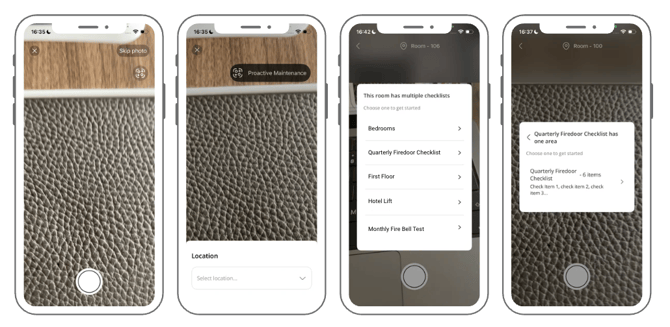
You'll see a Proactive Maintenance option (it looks like a small scan/QR icon). Tap this to begin.
-
Select the location: A list of locations across your site will appear. Tap the one you want to inspect.
-
Choose your inspection: A list of available proactive maintenance inspections for that location will appear. Choose the one you want to complete.
💡 Top Tip: Inspection names and checklists are set up by your site, so these will vary property to property. Go to our help article to see how these are set up.
-
Complete each area or section: Some inspections are split into different areas or sections (for example, Bedrooms, Bathrooms, or Kitchens). If this is the case, choose the area you'd like to start with.
-
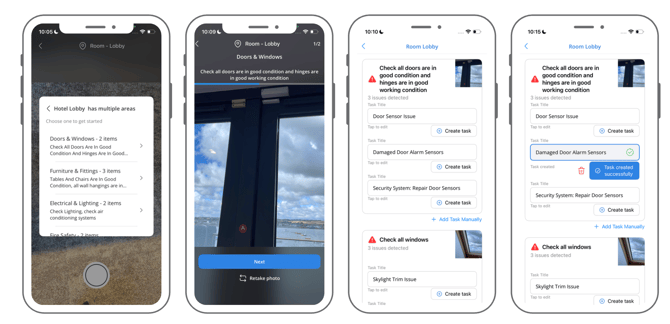
Take a photo for each task: Within each area, you'll be prompted to take a photo for every task listed in that section. Work through these one by one.
-
Review AI suggestions: Once you've photographed all the tasks in a section, Alkimii's AI will review the photos and list any potential issues it has picked up on. For each issue, you can tap "Create task" to add it straight to your maintenance list, or leave it if there's nothing that needs actioning.
⚠️ Please note: If you try to move on without creating a task for a suggested issue, you'll get a pop-up asking you to confirm. Tap "Continue without creating task" if you're happy to move on, or "Cancel" to go back and create it.
-
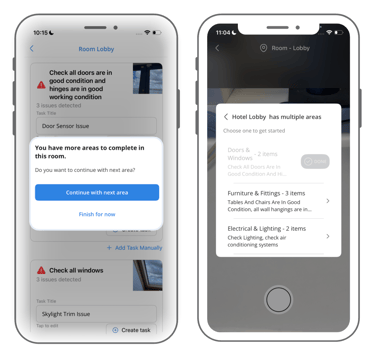
Move to the next area: Once you're finished with a section, you'll be asked if you want to continue with the next area or finish for now. Choose "Continue with next area" to keep going, or "Finish for now" if you're done.
-
Repeat until complete: Repeat this process for each area in the inspection. Once you've worked through everything, tap "Done and close" to finish.
How do I edit a task created during an inspection?
You can still edit the task as normal within the Maintenance Tasks feature on the mobile. To learn more about this, check out our help article ➡️ Maintenance Tasks on Mobile
📚 Looking to log a reactive maintenance issue instead of completing a full inspection? Check out our AI Maintenance article.