
What is the Medical section?
The Medical section in a staff member's profile is where you manage everything related to sickness absence — from tracking sick days to storing medical documents like sick notes (also called medical certificates).
Because this section can contain sensitive and confidential information, you will be asked to enter your Alkimii password before you can view it. This is an important privacy safeguard for your team members.
Before you begin
To get the most out of the Medical section, two things should be in place before you start using it:
1. Absence reasons configured in App Settings Absence reasons are the options that appear in medical forms when an employee is asked why they were absent. For example, flu, back pain, or migraine. There are a number of default reasons available in Alkimii out of the box, but you can add your own to better reflect what is common in your workplace.
To add or manage absence reasons, go to App Settings > People > Absence Reasons > Add Reason.
💡 Good to know: Absence reasons are what drive the Absence by illness chart in the Medical tab. The more consistently they are used, the more useful your absence data will be over time.
2. Medical forms built in HR Automation Before you can send a medical form or return to work form to a staff member, the form needs to have been created in HR Automation. If your forms have not been set up yet, take a look at our guide on building medical form types before coming back here.
How to access the Medical section
- Go to Staff Profile in the main menu.
- Search for and open the relevant staff member's profile.
- Select the Medical tab within the profile.
- When prompted, enter your Alkimii password to unlock the section.
💡 Good to know: Only users with the appropriate permissions will be able to access this section. If you do not have access, speak to your system administrator.
What you will see
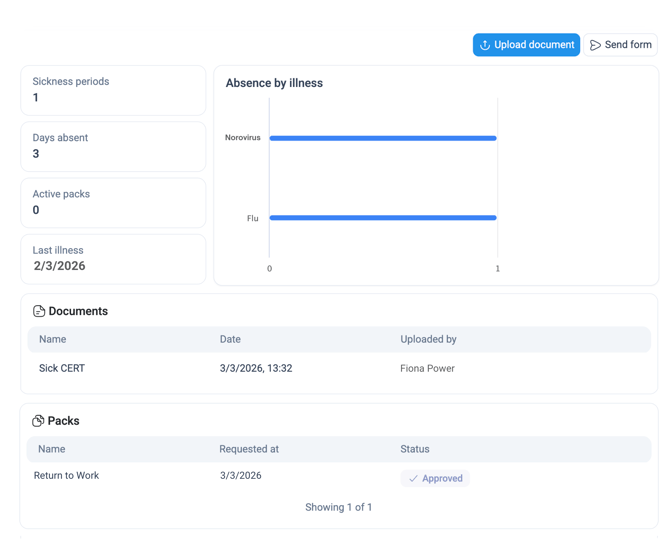
Once inside the Medical section, you will find four summary cards at the top of the screen:
| Field | What it means |
|---|---|
| Sickness periods | The number of separate instances of sick leave recorded. Each continuous absence counts as one period, no matter how many days it lasts. This works similarly to a Bradford Score, see the explanation below |
| Days absent | The total number of days this employee has been absent due to illness |
| Active packs | The number of medical forms or packs currently in progress |
| Last illness | The date of the most recent recorded illness |
Understanding sickness periods
A sickness period is any continuous stretch of sick leave, counted as a single period regardless of its length.
For example:
- Three days off in a row = 1 sickness period
- Three separate single days off = 3 sickness periods
This works in a similar way to the Bradford Score, a method used in HR to identify patterns of frequent short-term absence.
👤 Example: Ana has been absent three times this month — once for a single day, once for two days in a row, and once for four days in a row. Her record shows 3 sickness periods and 7 days absent.
Keeping an eye on the sickness periods figure, alongside days absent, helps you spot patterns early and have a timely, supportive conversation with a team member if needed.
The Absence by illness chart
The Absence by illness chart gives you a visual breakdown of an employee's absence history, organised by the reason recorded against each absence.
The chart populates automatically once a completed medical form is received back that includes an absence reason. When building a medical form in HR Automation, there is an option to toggle on Ask absence reason. When this is switched on, a question is automatically added to the form, presenting the employee with a dropdown list of the pre-configured absence reasons to choose from. Once the employee submits the form and selects their reason, that information pulls directly into the chart.
If the chart shows "No absence data", this is usually because:
- No absences have been recorded yet for this employee
- The Ask absence reason toggle was not switched on when the medical form was created
- The employee has not yet submitted a completed form
💡 Good to know: The chart updates automatically once a completed form is received back — there is nothing extra you need to do once everything is set up correctly.
Documents
The Documents section shows a list of any medical files that have been uploaded to this employee's profile. For each document you will see the file name, the date it was uploaded, and who uploaded it.
Packs
The Packs section shows a list of any medical forms that have been sent to this employee. For each pack you will see the form name, the date it was requested, and its current status, so you can see at a glance whether it has been completed or is still pending.
What you can do in this section
There are three main actions available to you:
1. Upload a document
Use the Upload document button (top right) to attach a medical file to this employee's profile. This might include:
- A sick note or medical certificate from a GP
- A hospital letter
- Any other supporting medical documentation
Uploaded documents are stored securely and can be reviewed at any time within the Documents table.
2. Send a form
Use the Send form button (top right) to send a form directly to the employee. You can use this to send:
- A medical form – to gather information about the employee's illness or condition
- A return to work form – to be completed when an employee is ready to come back after a period of absence
The form will appear in the Packs section once it has been sent, where you can track whether it has been completed.
How it all connects
It helps to see the full picture of how these features work together:
- App Settings → Configure your absence reasons (default options are available, add more as needed)
- HR Automation → Build a medical form and toggle on Ask absence reason
- Medical tab → Send the form to a staff member during an absence
- Staff member → Completes the form and selects the relevant absence reason
- Medical tab → The Absence by illness chart updates automatically with that data
Getting this flow set up correctly from the start means your absence data will be accurate, consistent, and genuinely useful for spotting trends across your team.
Tips for using this section effectively
- Upload documents promptly. Adding a sick note as soon as it is received keeps the record accurate and up to date.
- Use return to work forms consistently. Sending a return to work form for every absence, even short ones, is good practice that supports employee wellbeing and gives you a clear record.
- Check the summary cards regularly. If an employee's sickness periods are increasing, this can help you spot patterns early and have a supportive conversation.
- Remember the password step. If you are showing a colleague how to use this section, remind them they will need their own Alkimii login to access it.
Frequently asked questions
Q: Why do I need to enter my password to view the Medical section?
A: This section may contain confidential medical information. The password step ensures that only authorised users can view sensitive documents and data.
Q: What is the difference between sickness periods and days absent?
A: Days absent is the total number of sick days taken. Sickness periods counts how many separate instances of absence there have been. An employee could have a high number of days absent from one long illness, or a high number of sickness periods from many short absences — both figures together give you a fuller picture.
Q: Why is the Absence by illness chart empty?
A: The chart is populated when a completed medical form is received back that includes an absence reason. If the chart is empty, check that the Ask absence reason toggle was switched on when the medical form was created, and that the employee has submitted a completed form.
Q: Can I delete a document once it has been uploaded?
A: Please check with your system administrator or refer to your organisation's data retention policy.
Q: What happens after I send a form?
A: The form will appear in the Packs table with a status so you can see whether it has been completed or is still pending.
Q: Who can see this section?
A: Access is controlled by user permissions set up in Alkimii. Speak to your administrator if you are unsure who has access in your organisation.
Q: Where do I build or edit medical forms?
A: Medical forms are built separately within Alkimii before being sent from this section. Speak to your system administrator or refer to the relevant Help Centre article on building packs and forms.
Q: Where do I add or edit absence reasons?
A: Go to App Settings > People > Absence Reasons. There are default options already available, and you can add your own if you have the appropriate permissions.