
Housekeeping gives your team real-time visibility of every room's status, and lets you assign rooms to the people cleaning and inspecting them. This article covers the desktop view, used mainly for assigning rooms and overseeing status. For the app your housekeeping team uses to update rooms as they work, see Housekeeping on Mobile: for Team Members and Housekeeping on Mobile: for Supervisors and Managers.
Using a PMS integration? If your property connects to Oracle, some screens show extra fields pulled from that system. These are marked below.
Before you start using Housekeeping, set up your Areas. See How to Set Up Areas for Housekeeping.
Open Housekeeping
You'll see three or four tabs, depending on how your site is set up: Room Overview, Housekeeper Overview, Assign Rooms, and Guest Requests.
Understanding room status
Every room has a status. Icons and labels are shown together, so you're never relying on colour alone:
| Status | Meaning |
|---|---|
| Dirty | Needs cleaning |
| Pickup | Ready for the room to be inspected by the supervisor. |
| In progress | Currently being cleaned |
| Clean | Cleaning finished |
| Inspected | Checked and signed off |
| Out of order | The room has been marked out of order |
| Out of service | The room has been marked out of service |
Some status options may vary depending on your PMS and how it's set up.
Room Overview
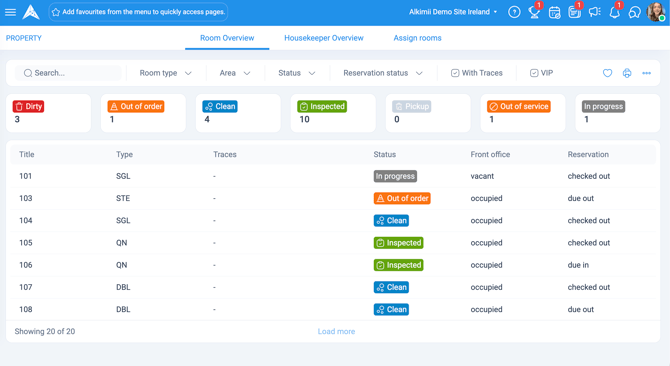
Room Overview shows a quick search bar and filters:
- Room type
- Area
- Status
- Reservation status (PMS integration only)
- With Traces (PMS integration only)
- VIP (PMS integration only)
Beneath the filters, you'll see every status with the number of rooms currently in it, so you can see where things stand at a glance.
Housekeeper Overview
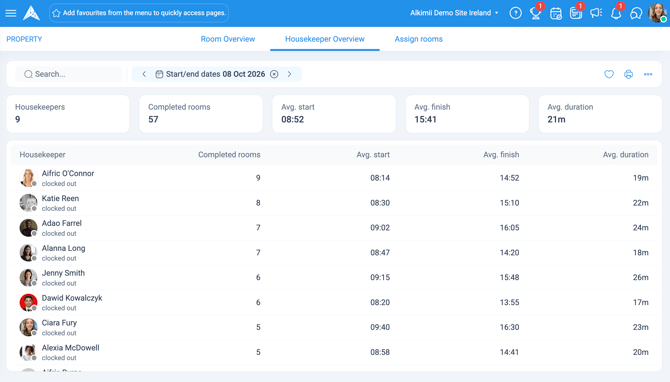
This tab shows the average start, finish and duration time for your accommodation team, based on the timer they use in the mobile app. [Confirm: is this timer a manual start/stop the team member controls themselves, tracking how long they spend on each room?]
It lists every housekeeper, not just those rostered today, so you can look back over a single day or a longer period for analysis.
Use the date control at the top to choose a single date or a date range. The figures update to reflect whichever period you've selected.
This tab is configurable and may not be available on your site.
If your site uses NFC tags for housekeeping, a tag can be linked to a room. The team member taps the tag to start the timer for that room, and taps again to stop it.
Assign Rooms
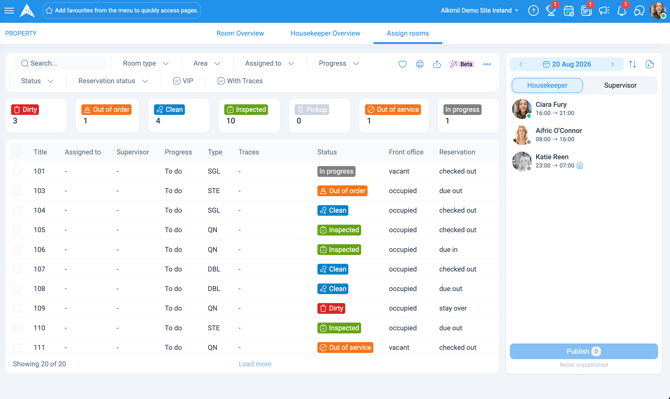
Assign Rooms shows a list view with its own filters:
- Area
- Assigned to
- Status
On the right, you'll see every team member rostered in the housekeeping department. Use the calendar at the top to switch between days, and Quick Reorder to change the order team members appear in.
You can export a report directly from this view.
Assign rooms to a team member
- Filter by Area, for example "First Floor", to narrow the list to those rooms.
- Tick the checkbox next to specific rooms, or the top checkbox to select every room in that area.
- Select the team member's name to assign the selected rooms to them.
Each room's status shows as an icon. If a team member has rooms in more than one status, all of them appear beneath their name.
Important: team members aren't notified until you select Publish. Assigning a room on screen doesn't tell them, so remember this final step.
In beta: Auto Assign
If your site is part of our beta programme, you can also assign rooms automatically rather than manually ticking and selecting a team member for each one. See How to Use Auto Assign for Housekeeping (Beta).
Managing a team member's assignments
Hover over a team member's name to reveal the three dots menu:
- View Housekeeping Summary
- See assigned rooms
- Unpublish all assigned rooms
- Unassign rooms
If the team member is set up as a Housekeeping Supervisor or Manager, you'll also see the option to Remove as Housekeeping Supervisor or Remove as Housekeeping Manager. This only removes their supervisor or manager view on mobile, so it's useful if you need cover for a short period, for example while they're on leave.
To give the role back, select the team member's three dots menu again and choose Set as Housekeeping Supervisor (or Manager).