
Before you start using Housekeeping, group your rooms into areas, for example by floor. This makes it much quicker to filter and manage only the rooms you need to work on, both here and in the Housekeeping web article and mobile articles.
Open Housekeeping areas
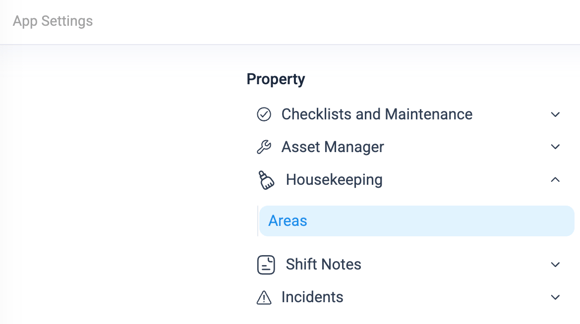
- Use the menu to open App Settings.
- Under Property, select Housekeeping, then Areas.
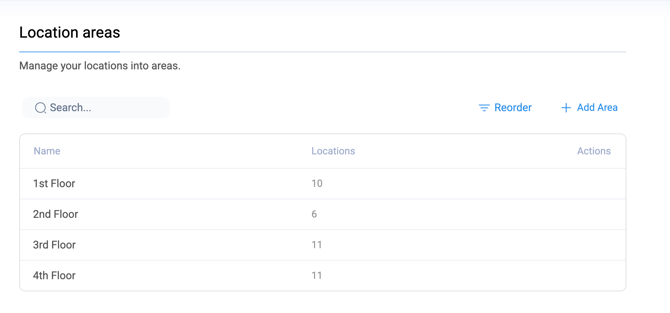
You'll see a list of your existing areas, with the number of locations in each.
Add an area
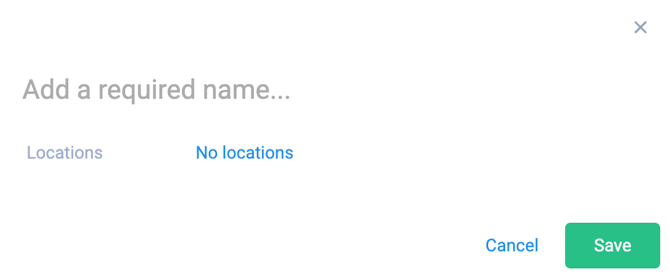
- In the top right, select Add Area.
- Enter a name for the area. This is required, so you can't save without one.
- Select Locations, then use the search bar to find and select the rooms that belong to this area. You can select more than one at a time.
- Select Save.
 Naming tip: use names your team will recognise at a glance, such as "1st Floor" or "Ground Floor Rooms", rather than internal codes. Short, clear names are easier to filter by later, and easier to read on a phone.
Edit or Delete an Area
- Find the area in the list.
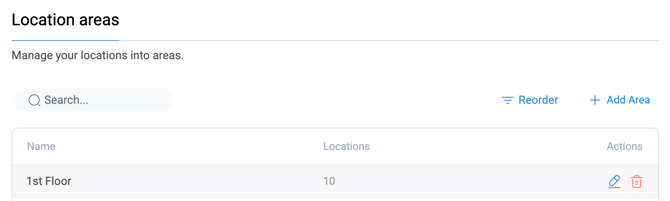
- Hover over the Actions column at the end of its row.
- To edit it, select the pencil icon. Update the name or the locations included, then select Save.
- To delete it, select the bin icon.
Reorder your areas
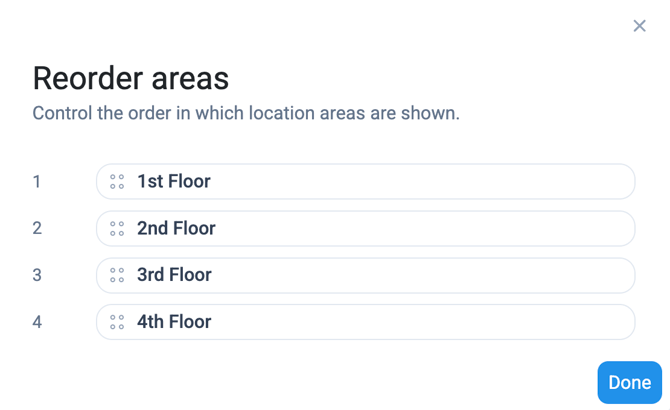
Areas are listed in the order you set here, which is also the order they'll appear when filtering elsewhere in Housekeeping.
- In the top right, select Reorder.
- Drag each area by the handle on the left to change its position.
- Select Done when you're happy with the order.
Common problems
- I can't see Housekeeping in App Settings. Your access level may not include this area. Ask your Management Team if this is something you should have access to and if so, contact our customer success team to get this enabled.
- I can't save a new area. The name field is required. Enter a name and try again.
- I can't find the edit or delete icons. Hover over the Actions column at the end of the area's row.
- A room isn't showing up when I search. Rooms will pull from Locations list, this would need to be added before you set up your areas. See How to add locations in Alkimii