
🪄 This feature is in beta. It’s available to a limited number of sites while we test it. If relevant: contact Customer Success to join, or this is automatically available if your site has opted in.
Alkimii AI creates a housekeeping schedule for you, using the team rostered on the selected date. It assigns each area to a person and, where possible, gives team members areas they’ve been assigned before. You can review and adjust the draft before anything is published.
Before you start
Auto Assign is in beta and switched on per site by our team. If you’d like to use it, contact Customer Success to have it enabled.
Alkimii AI’s behaviour is shaped by a few settings configured in the background for your site:
- Prefer same housekeeper: tries to give each housekeeper the areas they usually clean. For example, if a housekeeper normally works Floor 1, it’ll try to assign Floor 1 to them again.
- Group by area: tries to keep each person’s rooms within the same area, rather than spreading them across several.
- Balance workload: distributes rooms evenly across the team.
- Max rooms per housekeeper and Max rooms per supervisor: the most rooms one person can be assigned.
Generate assignments
- Open Assign Rooms.
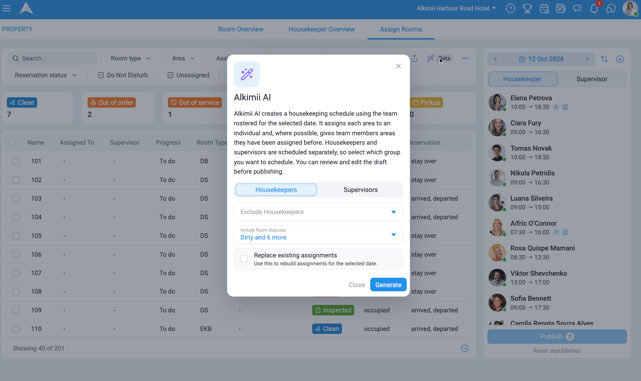
- Select the wand icon, labelled Beta, in the filter bar.
- Choose whether you’re assigning Housekeepers or Supervisors. These are scheduled separately, so run this once for each group.
- Exclude Housekeepers (or Exclude Supervisors): optional. Use this to leave someone out of the auto-assign, for example a new starter who isn’t ready to take a full workload yet.
- Include Room Statuses: choose which statuses to assign out.
- If you have already started assigning rooms but want to replace these assignments with the auto assign, tick Replace existing assignments.
- Select Generate.
Review and adjust the draft
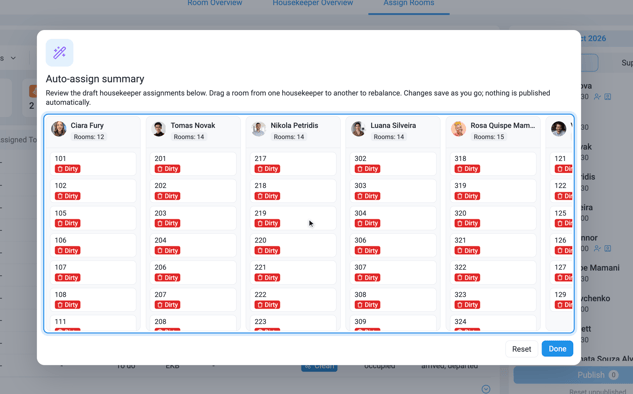
Alkimii AI shows a draft of the assignments it’s created, with each person’s name, photo and the rooms allocated to them.
Not quite right? You don’t need to regenerate the whole draft if it’s close but not perfect.
- Drag a room from one person’s column to another’s to rebalance the assignment yourself.
- Changes save as you go. Nothing is published automatically; you can keep adjusting until you’re happy.
- Select Reset to discard your changes and go back to the generated draft.
- Select Done when you’re fhappy with the assignment.
Generating a draft doesn’t notify your team. As with manual assignment, you’ll still need to select Publish for housekeepers to be notified of their rooms.
Set up a Supervisor for the day
To run auto-assign for supervisors, you first need people set up as a Supervisor for that day, if they aren’t already.
- In Assign Rooms, find the team member.
- Select the three dots beside their name.
- Select Make Supervisor.
Once set up this way, they’ll appear as an option when you run auto-assign for Supervisors.