
Setting up your maintenance team means only the right people can be assigned maintenance tasks. You can also control exactly what each member is able to do, giving you full control over your maintenance workflow.
Before you start
You'll need the correct permission to add or edit your maintenance team. If you can't access this setting, ask your system administrator to grant you permission.
Steps to set up your maintenance team
- Open the menu at the bottom of the screen.
- Select App Settings.
- Scroll down until you see Checklists & Maintenance.
- Select Maintenance Team.
- Select Add Maintenance Team Member.
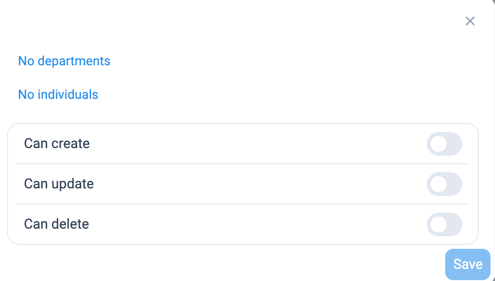
- Choose who you'd like to add. You can either:
- Select a whole department (for example, Housekeeping or Engineering), or
- Select specific individuals by name.
- Set the permissions for this member or department by turning on the relevant toggles:
- Can create — allows them to create new maintenance tasks.
- Can update — allows them to update existing maintenance tasks.
- Can delete — allows them to delete maintenance tasks.
- Select Save.
- Repeat these steps until you've added everyone you need on your maintenance team.
What happens next
Once your maintenance team is set up, only these employees will appear as assignees when creating maintenance tasks. This makes it faster and easier to get tasks to the right person, and avoids tasks being sent to someone who isn't part of the maintenance team.
👉See our help article for more information on Logging Maintenance Tasks
Edit a team member
- If you add a department, permissions are set at group level. You won't be able to adjust the toggles for that department directly.
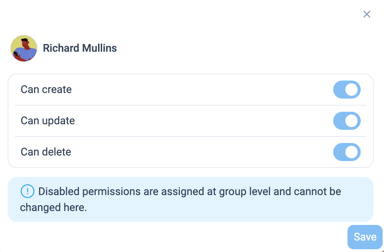
- If you add an individual, you can adjust their Can create, Can update and Can delete toggles yourself. If any toggle appears greyed out, this means that permission is controlled at group level and can't be changed for that person individually.
Removing a team member
If someone leaves the maintenance team, you can remove them easily:
- Go to Maintenance Team (following the same steps above).
- Find the person you want to remove, either by scrolling or using the search bar.
- Select the Delete option next to their name in the Actions column.
They'll no longer appear as an assignee option for maintenance tasks.