
What is My Settings?
My Settings is where you choose how Alkimii works for you. You can change your language, choose which notifications you get, connect your calendar and manage your login and security.
When you log in to Alkimii for the first time, the Settings window opens automatically. You can change your settings now, or close the window and come back later.
How to open My Settings
-
Click your profile picture or initials.
-
Click My Settings.
-
The Settings window opens.
💡 Tip: Use the Search box at the top left to find a setting quickly. For example, type "language" or "password".
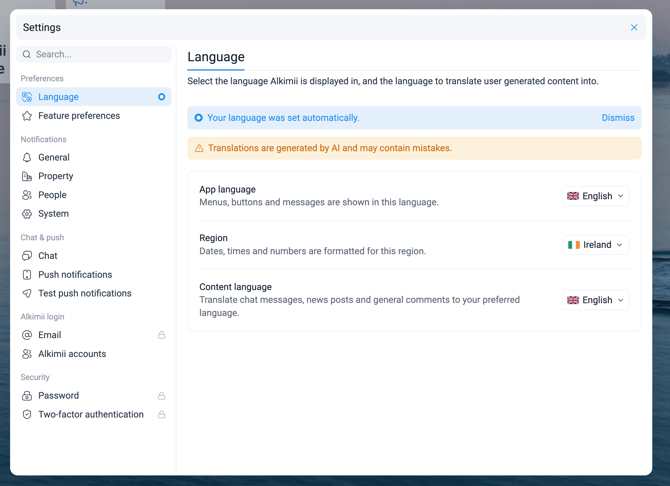
How the Settings window is organised
The menu on the left has six sections:
-
Preferences
-
Notifications
-
Chat and push
-
Alkimii login
-
Security
Click a section name to see its settings on the right
1. Preferences
Language
Here you choose the language for Alkimii. There are three settings:
-
App language: The language for menus, buttons and messages in Alkimii.
-
Region: How dates, times and numbers are shown. For example, choose Ireland or United Kingdom to see dates as day/month/year.
-
Content language: The language for chat messages, news posts and comments from other people. Alkimii translates these into the language you choose.
To change a language setting:
1. Click Language.
2. Click the drop-down menu next to the setting you want to change.
3. Choose your language or region.
4. Your change saves automatically.
🚨Important: Translations are generated by AI and may contain mistakes. If a message is important, for example about a shift change or allergens, check the original message or ask the person who wrote it.
If you see the message "Your language was set automatically", Alkimii has chosen a language based on your device. Click Dismiss to hide the message, or change the language if it is not correct.
Feature preferences
Here you can turn some Alkimii features on or off, based on how you like to work.
- Click Feature preferences.
- Find the feature you want to change.
- Click the toggle to turn the feature on or off. When the toggle is blue, the feature is on. When it is grey, the feature is off.
- If you do not see the change straight away, reload the page.
ℹ️ Note: You will see the message “Some features require a page reload”. This means that for some features, you need to reload the page before you see the change. To reload, press F5 on Windows or Command + R on Mac.
The features you can turn on or off are:
- Holiday balances as days
- Incoming chat message sound
- Menu favourites
- Roster decimal durations
- Roster productivity daily metrics
- Show calendar sidebar
- Known by
- Time based animations
2. Notifications
Here you choose which notifications you receive and how you receive them. Notifications are grouped into General, Property, People and System. You only see the notifications that match your role and access.
For each notification, use the drop-down menu to choose In Alkimii, Email, Both or None.
🚨Important: If you turn a notification off, you will not receive any record of it.
ℹ️ Note: You can only change your notification settings on the desktop version of Alkimii.
📚 For the full list and a step-by-step guide, see "My Settings: choose your notifications".
3. Chat and push
Chat
Here you can turn read receipts on or off. Read receipts show other people when you have read their message.
- Click Chat.
- Click the toggle to turn read receipts on or off.
ℹ️ Note: Read receipts are always on in group chats. You cannot turn them off for group chats.
📚 For more information on using Alkimii Chat, see our help article on Navigating Alkimii Chat
Push notifications
Choose which alerts appear on your phone. For a step-by-step guide, see "My Settings: set up push notifications".
Test push notifications
Here you can choose to receive push notifications only when you are working.
- Click Push notifications.
- Click the toggle next to Only notify me when rostered.
When this is on, you only receive notifications when you are rostered and have clocked in.
💡 Tip: This setting supports your right to disconnect. It helps you switch off from work outside your working hours.
5. Alkimii login
Here you can change the email address you use to log in to Alkimii.
🔐 Restricted: The lock icon next to Email means you need to enter your password before you can see this section. This keeps your account safe.
- Click Email.
- The Confirm your password window opens. Enter your Alkimii password.
- Click Validate.
- You will see the message “Validated. Access will expire in one hour.” This means you can use this section for one hour without entering your password again.
- Your current email address is shown at the top.
- In New email, enter your new email address.
- In Confirm new email, enter your new email address again.
- In Password, enter your Alkimii password.
- Click Update email.
Alkimii Accounts
Here you can see all the Alkimii accounts linked to your email address. If you work at more than one site, for example two hotels in the same group, you will see an account for each site.
Each account shows:
- your name
- the site name
- the organisation name
To switch to another account:
- Click Alkimii accounts.
- Click the account you want to use.
- Alkimii switches you to that account.
Tip: The account you are using now is highlighted.
6. Security
-
Password: Change the password you use to log in to Alkimii.
-
Two-factor authentication: Add an extra security step when you log in. This helps keep your account safe.