
This feature allows you to pay your full time salary employees on a monthly basis. As opposed to the usual payroll process which is based on the hours completed by the employee, monthly salaries focus on ensuring that the Full Time Salaried Employees have worked their full 5 days per week throughout the payroll period.
💡 Tip: Use the month view on the roster to plan quickly
If you manage staff on monthly salaries, the month view on the roster is a handy way to plan and confirm their schedules in one go. Switch the roster to month view to see the full period — 1st through to the 30th or 31st — so you can roster monthly-paid staff across the entire pay period at a glance, rather than week by week.
Use our Quick Links to Jump to What You Need:
|
2. Navigation 3. How it Works |
5. Reverting Approval & Sign Off |
1.The Process
The process for monthly salaries is split out between three different roles; the HR Manager; the General Manager and the Accountant. All three steps are handled within this single screen. Depending on your organisation this may differ slightly.
The account role will have access to complete all 3 steps, however the HR Manager and General Manager will only have access to their step of the process.
- Sign Off - HR Manager
- Approval - General Manager
- Processing - The Accountant
2.Navigation
Your default view will be the current month's period. You can change the period by using the monthly calendar function.
Search & Filter
- Period - By Calendar Month
- You can filter by department or employee using the dropdown menus.
- The contract type should always be set to “Full Time”
- You can filter by the status, this is related to the process outlined above.
- If it is Pending, this is awaiting the HR Manager to Sign Off
- If it is Approved, this is awaiting the General Manager to Approve
- If it's Processing, this is awaiting the Accounts Team to Process
-
Here you can see the status of the monthly salaries when it was last processed and the exact payroll and deduction periods.
-
Depending on the status of the process, you will see the sign-off, approve or process button.

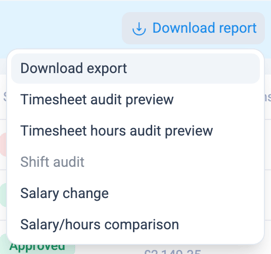
Reports
|
 |
List View
|
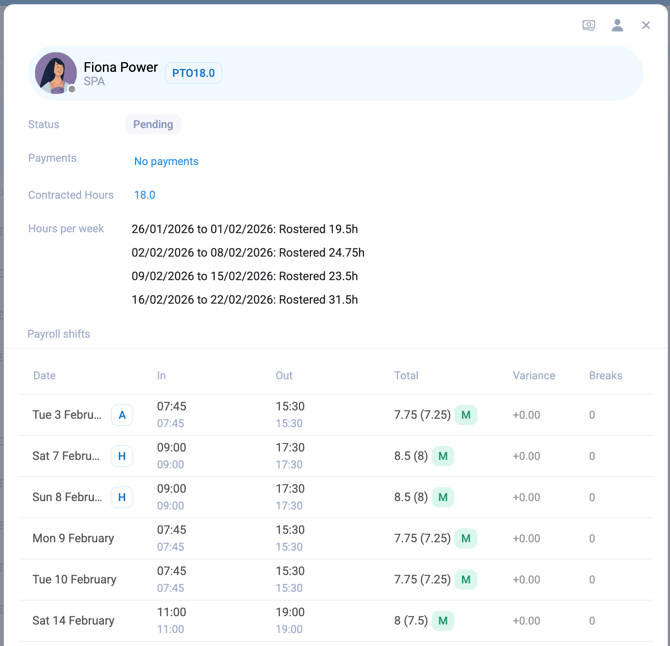 |
- You can sign off this employee once the review is complete with this modal. Scroll to the bottom and click “Sign Off”
- Back to the employee list beside the employee's name, you will see the contract type, and contracted hours and if a warning symbol appears this will let you know that the employee has worked less than 5 days in the week.
- Previous gross: Amount paid out for the previous period
- Monthly salary amount: Per contract
- System adjustments: Anything that happened in the previous period can be amended here.
- Bonus payments
- Other payments
- Manual hours: Apply using the “adjust hours” feature. These can be both positive and negative figures.
- Overtime: Applied based on your configuration.
- Note: Notes like New Hire, Salary Change, and Leavered will display here
- Status of the process: Pending, Approved, Salary Changed
- Gross Pay: The total amount to be paid out in this payroll period inlcuding all expenses.
- Actions: View the full payroll breakdown for the period, adjust hours, add payments, and open the chat window.
3.How it Works?
HR Managers Steps
- Open the Monthly Salaries Page. This will default to the current month so toggle the calendar function to select the Period you wish to process for payroll.
- Review the list of employees, ensuring they have all been rostered for their full 5 days for each week of the period. If the employee has worked less than 5 days a warning triangle will appear beside the contract information.
- Review the monthly salary figure to ensure it is correct. If there are any payments from the previous period due to be paid out such as a bonus, expenses or adjusted hours. Use the action icons to complete these steps. Once saved these will populate under system adjustments.
- Repeat these steps until you are satisfied with the amounts to be paid out, you can either individually sign off each employee or bulk sign them off using the checkbox to the left of the “Employee” heading.
- A pop-up window will appear to confirm that you have completed the steps for sign-off. These checkboxes must be ticked in order to sign off the payroll for the GM to approve.
- You will notice the status for the employee will change to “Signed Off” and the Sign Off button to the right has been replaced with an approval button.
General Managers Steps
- Open the Monthly Salaries Page. This will default to the current month so toggle the calendar function to select the Period you wish to process for payroll.
- The status will display as “Signed Off”. Review this information to make sure you are happy with the HR Manager’s sign-off before allowing it to be processed by the accounts team.
- You can click on each individual employee to review their hours worked and payments allocated. You can also see who signed off this employee with a time and date stamp.
- If you scroll to the bottom of the modal you will see the option to undo the sign if amendments are needed.
- You can also exclude the employee from the payroll run if they should not be included.
- Once you are satisfied with the entries you can click approve in the bottom right of the modal.
- You also have the option to bulk approve all employees by ticking all checkboxes to the left of the employee names and clicking “Approve” in the top right.
The Accounts Team Steps
- Open the Monthly Salaries Page. This will default to the current month so toggle the calendar function to select the Period you wish to process for payroll.
- The status will display as “Approved”. Review this information to make sure you are happy with the GM's approval before processing the payments for payroll.
- If amendments are required for an employee's salary, click on their name and scroll to the bottom of the modal. On the left you will see “Revert Approval”.
- Once you are happy with all payments due to be processed you can click “Process” in the top right. This option is not available on a individual level you can only process all employees in one go.
- When you select the “Process” button, you will be prompted to generate your payroll file.
- Once generated, it will prompt you to download the payroll file. This step will essentially close out the payroll for the period. Do not open the payroll file once downloaded.
4.Long Term Leave
You can now assign long-term leave shifts that will automatically generate for a period of time within the week roster from within the staff profile. For more information on adding long-term leave, see our help article https://customersuccess.alkimii.com/knowledge/leave
5.Reverting Approval and Sign Off
👉 Only Accountant & GM access levels will be able to complete these steps.
Reverting Approval
- Within the individual staff profile within the monthly salaries view, scroll down and on the bottom left click the “Revert Approval” button.
- Once selected this will then update the status of this employee and the overall status of the payroll to “Signed Off”.
- Please note that once approval has been removed you will have the option to “exclude this employee from the payroll run”.
- You will not be able to proceed with processing payroll until the status has been updated to approved.
Sign Off
- If you revert the “Sign off”, this will change the status of this employee and the overall status of the payroll to “Pending”
- In order to complete payroll all employees must be signed off.
- Should you wish to not process an employee within this payroll period you can select to “exclude from payroll run”. Once selected this employee's status will be updated to excluded and you will be able to approve all other signed-off employees. This will update the overall payroll to “Approved” which will allow you to process the payroll.
6. Employee Changes: Starters, Leavers & Contract Changes
When an employee starts, leaves, or has a contract change (such as a salary adjustment or change in working hours), Alkimii automatically recalculates their pay for the relevant payroll period.
The system calculates pay on a pro-rata basis, meaning the employee is paid only for the portion of time they were actively employed under their applicable contract terms during that month.
Which calculation method does my site use?
Your site will use one of the two methods below. If you are unsure which applies to you, check with your system administrator.
| 260 Rule | Days in Month Rule | |
| Based on | Annual salary | Monthly salary |
| Divided by | 260 (fixed, every month) | Actual working days that month |
| Daily rate | Same every month | Changes each month |
Method 1 - The 260 Rule
This method uses a fixed daily rate based on 260 working days in a year (weekends exlcuded)
How the daily rate is calculated: Annual Salary ÷ 260 = Daily Rate
🟢 New Starter
| Annual Salary | €39,000 |
| Daily Rate ( €39,000 ÷ 260) | €150.00 |
| Rostered days worked this month | 14 days |
| Gross pay ( 14 x €150) | €2,100.00 |
🔴 Leaver
| Annual Salary | €52,000 |
| Daily Rate ( €52,000 ÷ 260) | €200.00 |
| Rostered days worked this month | 8 days |
| Gross pay ( 8 x €200) | €1,600.00 |
🟡 Contract Change (Salary Increase Mid-Month)
| Daily Rate | Days Worked | Amount | |
| Annual Salary | €150.00 | 10 | €1,500.00 |
| Daily Rate ( €52,000 ÷ 260) | €160.00 | 10 | €1,600.00 |
| Total Gross pay | €3,100.00 |
Method 2 - Days in Month Rule
This method uses the actual number of working days in that specific month, so the daily rate changes from month to month.
How the daily rate is calculated: Monthly Salary ÷ Working Days That Month = Daily Rate
🟢 New Starter
| Monthly salary | €3,000 |
| Working days this month | 22 days |
| Daily rate (€3,000 ÷ 22) | €136.36 |
| Days worked this month | 12 days |
| Gross pay (12 × €136.36) | €1,636.32 |
🔴 Leaver
| Monthly salary | €4,000 |
| Working days this month | 20 days |
| Daily rate (€4,000 ÷ 20) | €200.00 |
| Days worked before leaving | 5 days |
| Gross pay (5 × €200) | €1,000.00 |
🟡 Contract Change (Salary Increase Mid-Month)
| Daily Rate | Days Worked | Amount | |
| Old salary (€3,000 ÷ 20) | €150.00 | 8 | €1,200.00 |
| New salary (€3,200 ÷ 20) | €160.00 | 12 | €1,920.00 |
| Total gross pay | €3,120.00 |
6.Troubleshooting Tips & Tricks
Dont see an employee on the Monthly Salaries who should be there?
It might be worth checking the employment details page to ensure that their payment settings has been set up correctly for monthly salaries.
In order for Monthly Salaries to be successfully set up for an employee, they must first be on a full-time contract in Alkimii. In the employement details, their payment type should be set up as follows:
- Pay Method - Bank Transfer
- Pay Type - Salary
- Payment Frequency - Monthly
Remember if you do amend any of this information dont forget to Save!