
Alkimii's overtime functionality allows you to configure and manage overtime pay directly within the platform, ensuring that staff are accurately compensated for any additional hours worked beyond their contracted or rostered hours. This article walks you through how to set up overtime at the staff profile level and how it flows through to your payroll.
Step 1: Configuring Overtime in the Staff Profile
To set up overtime for an individual employee, navigate to their Staff Profile and select Employment > Payment.
Within the Payment tab, you'll find the overtime settings in the Pay Rate section. Here's what to look for:
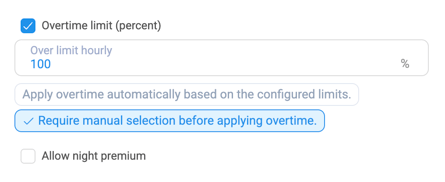
Overtime Limit (Percent)
|
 |
-
Once enabled, you'll see the Over Limit Hourly field appear, where you input the percentage rate at which overtime should be paid. For example:
- 100% — basic rate (no uplift, the employee is simply paid their standard hourly rate for overtime hours)
- 150% — time and a half ( paid time and a half for overtime hours)
Applying Overtime
Once your limit is configured, you have two options for how overtime is applied:
- Apply overtime automatically based on the configured limits: Alkimii will apply the overtime rate without any manual intervention once the agreed site's overall threshold is reached. For example, any hours over 39 are automatically overtime.
- Require manual selection before applying overtime: allows managers or payroll administrators the opportunity to review and approve overtime before it's applied.
Select whichever option aligns with your business process. For most hospitality operations with consistent rosters, the automatic option streamlines payroll significantly.
💡 Tip: Make sure each employee's overtime configuration is reviewed at the point of onboarding or contract change, particularly for staff moving between full-time and part-time arrangements.
Step 2: Understanding How Overtime is Calculated
Alkimii calculates overtime based on rostered hours, not clocked hours. This is an important distinction — it's the schedule that drives the overtime check, not the raw clock-in/clock-out data.
Working Pattern vs. No Working Pattern
-
If the employee has a Working Pattern assigned:
Alkimii uses the specific daily hours defined in their working pattern to assess overtime. For example, if an employee is on an FT40 contract but works a 4-day week, their daily contracted hours are 10 hours rather than 8. Overtime would therefore only trigger if they worked more than 10 hours in a day, not more than 8.
-
If the employee has no Working Pattern:
Alkimii divides the contracted weekly hours by 5 to calculate a daily baseline. For example, an FT40 employee with no working pattern assigned would have a daily baseline of 8 hours, and any hours worked beyond that on a given day would be eligible for overtime.
Step 3: Applying Overtime on a Single Day
The Week Details screen is where managers will typically handle overtime decisions at the individual employee level, giving you a shift-by-shift view of rostered hours, clock-in/clock-out times, paid hours, and any variance for the week.
Reading the Week Details Screen
Each employee's weekly breakdown displays the following columns:
- Roster In – Roster Out: The scheduled shift as per the rota
- Clock In – Clock Out: Actual times recorded by the employee
- Paid In – Paid Out: The hours being processed for payment
- Total: The total hours for the week, with paid hours shown in brackets
- Variance: Any difference between rostered and clocked time
At the bottom of each employee's week, Alkimii will flag if their hours are under or over their standard contracted hours. This is your prompt to take action.
💡 Important: Overtime eligibility is assessed against rostered hours, not clocked hours. Keep this in mind when reviewing variances in the Week Details screen. If the employee's clocked hours reflect their actual hours worked you want applicable for overtime, please update the shift accordingly.
When Hours Are Under Standard (Top Up with TOIL)
If an employee's paid hours fall short of their contracted hours. You'll see a "Top up week with TOIL" button appear. This allows you to draw from the employee's TOIL balance to make up the shortfall. If the TOIL balance is insufficient, the system will flag this too, so there are no surprises at payroll.
When Hours Are Over Standard (Adjust to Pay Salary / Apply Overtime)
When an employee has worked more than their contracted hours in a given week. The system will flag this with a warning, and the "Adjust to Pay Salary" button will appear.

Clicking Adjust to Pay Salary opens model where you can decide to "Adjust to Standard Hours". This will calculate the variance across the week and allow you decide where you want this variance to be logged:
|
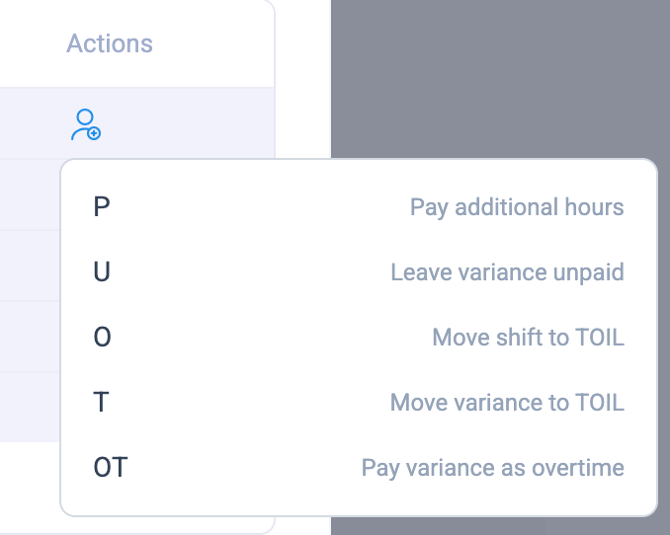 |
When you select OT Alkimii will apply the configured overtime percentage to the additional hours worked that week. The hours and their monetary equivalent will then flow through to the payroll screen for review before sign-off.
💡 Tip: For single-day overtime rather than a full week adjustment, the process is the same — select the relevant day, and the same P/U/O/T/OT options will be available. Hours applied as overtime will display as OT on the employee's record.
Step 4: Reviewing Overtime in Payroll
Once overtime has been triggered and configured, here's where it surfaces in the payroll workflow:
For salaried staff: Overtime hours and the monetary equivalent will appear directly on the Monthly Salaries page under the overtime column. This gives you a clear view of what's pending before sign-off.
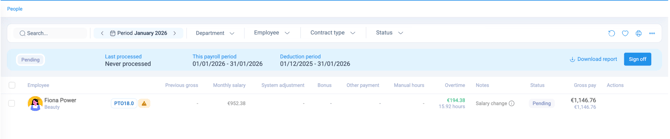
For non-salaried (hourly) staff: Overtime will populate in the Timesheet Audit Preview, allowing you to review the hours and associated costs before processing.
In both cases, the status will show as Pending until the payroll period is signed off. You can use the Download Report function to export a summary before finalising.