
Housekeeping on mobile has three views: Housekeeper, Supervisor and Manager. Each shows different information and actions, described below.
⚠️ Using a PMS integration? Some details on the room card, and some status options, come through your property management system and vary depending on which integration you use. These are marked below.
Before you start
You'll only see your assigned rooms if:
- You're rostered for a housekeeping shift, and
- You've clocked in.
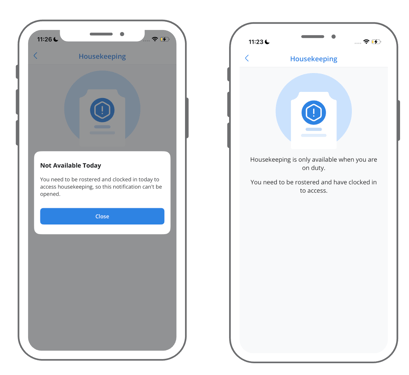
If either of these isn't true, opening Housekeeping shows a message: "Housekeeping is only available when you are on duty. You need to be rostered and have clocked in to access." If you tap a housekeeping notification in this situation, you'll see a pop-up titled Not Available Today, explaining the same thing.
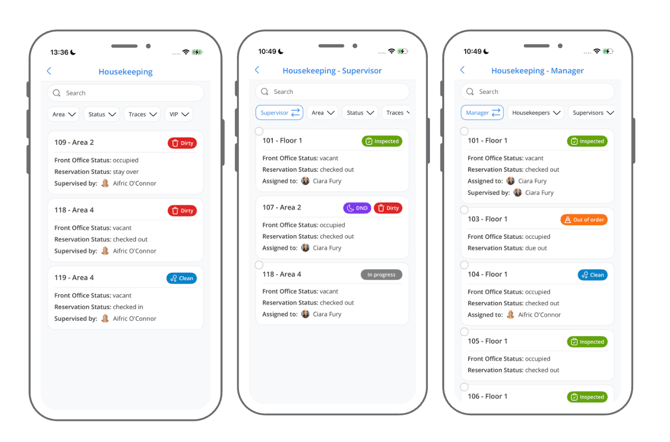
If you hold more than one housekeeping role (for example, Housekeeper and Supervisor), you'll see a role chip at the top left of the filters. Use it to switch between your views. If you only hold one role, this chip won't appear.
Understanding a Room Card
Each room card shows the room number and area, and its current status. Depending on your role and your site's setup, it may also show:
- Front Office Status: whether the room is currently occupied, for example vacant or occupied. (PMS integration only; the exact options depend on your integration.)
- Reservation Status: the guest's booking status for that room, for example checked out, due out or due in. (PMS integration only; the exact options depend on your integration.)
- Supervised by (Housekeeper view) or Assigned to (Supervisor view): who else is responsible for the room.
Housekeeper view
Open your assigned rooms
Tap the notification you receive when rooms are assigned to you, or open Housekeeping from the menu.
You'll see the usual filters across the top, and a list of your assigned rooms below.
If your site uses a PMS integration, your rooms may be queued in priority order rather than a simple list.
Work through a room
- Tap a room to open it.
If your site uses the timer: tap Start when you begin cleaning. When you tap Stop, the room's status updates to Clean automatically.
If your site doesn't use the timer: update the status yourself as you go, for example Dirty → In Progress → Clean.
Setting Do Not Disturb (DND): if your site's integration supports it, you can mark a room as DND if the guest shouldn't be disturbed. This appears alongside the room's other status, rather than replacing it.
Report a maintenance issue
Found something that needs fixing while you're in a room? At the bottom of the room, select Find an issue? Create Maintenance task.
For the full steps on logging a maintenance task, see How to Log a Maintenance Task.
Supervisor view
Supervisors check rooms after they've been cleaned, and can be assigned rooms to clean themselves, the same way as a Housekeeper.
On the Supervisor view, each room shows Assigned to rather than "Supervised by," naming the Housekeeper responsible for it.
Getting assigned rooms
A Manager assigns you rooms in the same way as a Housekeeper, but as a Supervisor.
Reviewing completed rooms
When a Housekeeper marks a room as Clean, you get a notification that it's ready for you to review.
- Open the room from your notification, or from your list.
- Check the room is ready for a guest.
- Update its status to Inspected to confirm it's checked and ready for check-in.
Update several rooms at once
You can update the status of more than one room in a single action:
- Select the circle on each room you want to update.
- Choose the status to apply, for example Inspected.
Supervisors can also do everything covered in the Housekeeper view above, for any rooms assigned to them to clean.
Manager view
Managers can see every room and every team member, filtering by Housekeepers or Supervisors as well as Area. This gives a full view of what's happening across housekeeping that day.
Update several rooms at once
Like Supervisors, Managers can select rooms using the circle beside each one and apply a status to all of them at once. This is useful for making quick changes across many rooms without opening each one individually.
Common problems
- I can't see my assigned rooms. Check you're rostered for a housekeeping shift and that you've clocked in.
- I tapped a notification and nothing happened. If you're not currently rostered and clocked in, the notification can't be opened. You'll see a message explaining this.
- I don't see a role chip to switch views. This only appears if you hold more than one housekeeping role. If you believe you should have more than one, ask management team if you think you should be assigned more roles.
- A room shows a status I don't recognise, or fields I've never seen before. Some statuses and fields depend on your site's PMS integration, so they can vary between properties.