
What is a Request Signature pack?
A Request Signature pack is used to send documents to an employee for digital signing. This could be a contract, a terms of service policy, or more. The employee can review and sign the document digitally, without the need for printing or in-person signing.
💡 Not sure which form type you need? Take a look at our overview article Creating a form in HR Automation which explains all four form types and when to use each one.
Before you begin: check your Document Store
Documents available to include in a Request Signature pack are pulled directly from your Document Store in Alkimii. Before building your pack, make sure the documents you need have already been uploaded there — if a document is not in your Document Store, it will not appear in the dropdown when building the pack.
If you need help uploading documents, see Managing your Document Store.
How to build a Request Signature pack
Once you are on the form-building page:
- The form will open with a default section already in place. Click on the section title to rename it — for example, "Contract of Employment" or "Policies to Sign". You can also add a short description beneath the title to give the employee some context about what they are being asked to sign and why.
- To add a document, click on the blue text marked "No document selected". A dropdown menu will appear showing the documents available from your Document Store. Select the relevant document.
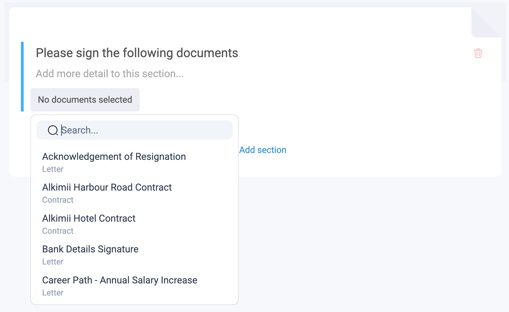
- Decide whether this document should be mandatory or optional:
- Toggle on Mark as required if the employee must sign this document before they can submit the pack. They will not be able to bypass it or submit without completing it.
- Leave it off if the document is optional.

- To add more documents to this section, repeat steps 2 and 3.
- To add a new section to the pack, click Add Section at the bottom of the page. All sections will appear along the right-hand side of the screen so you can navigate between them easily.
- When you are happy with your pack, click Save in the top right corner.
💡 Tip: The system will flag any unsaved changes on the right-hand side of the screen. Make sure you save before leaving the page.
Tips for building effective Request Signature packs
- Check your Document Store before you start. If the document you need is not in the dropdown, it has not yet been uploaded to the Document Store.
- Use sections to group related documents together. For example, a new team member onboarding pack might have one section for the contract of employment and another for policies such as a code of conduct, a GDPR acknowledgement, or a hygiene and food safety policy.
- Add a description to each section. A short note explaining what the employee is signing and why helps build trust, sets clear expectations, and reduces the likelihood of queries coming back to your HR team.
- Mark all essential documents as required. For documents that have a legal or compliance obligation, such as a contract of employment or a data protection acknowledgement, always toggle on Mark as required to ensure they cannot be skipped.
- Use the preview option to check how the pack will appear to the employee before sending it.
What happens next?
Once your Request Signature pack is saved, it is ready to be sent directly to an employee or included in a broader onboarding or HR pack. The employee will receive a notification and can review and sign the documents digitally at their convenience.
When editing the pack, you will also have the option to see which packs it is currently used in and preview it as the recipient will see it.