
What is a Profile form?
A Profile form is used to collect important, personal information from your employees. This information must be reviewed before it affects profiles. This could include name, date of birth, emergency information, bank details, or more.
Rather than a manager manually entering this information, the employee fills in the form themselves, making it ideal for onboarding new team members or keeping existing records up to date.
💡 Not sure which form type you need? Take a look at our overview article Creating a form in HR Automation which explains all four form types and when to use each one.
How Profile form inputs work
Unlike a General form where you write your own questions, a Profile form uses pre-set inputs that map directly to fields in the employee's profile, for example, home address, date of birth, or next of kin details. You select which inputs to include rather than writing the questions yourself, which ensures the information collected is always in the correct format for the system.
How to build a Profile form
Once you are on the form-building page:
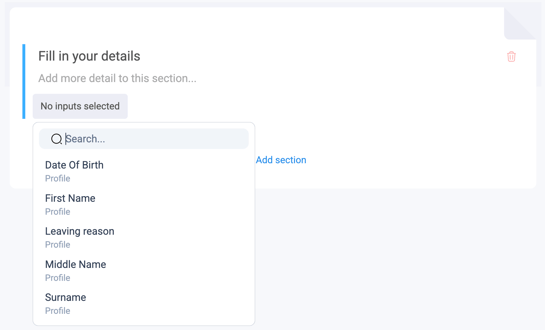
- The form will open with a default section already in place. Click on the section title to rename it — for example, "Personal Details" or "Emergency Contact Information". You can also add a short description beneath the title to give the employee some context about what they are being asked to provide.
- To add an input, click on the blue text marked "No Input Selected". A dropdown menu will appear showing the available profile fields — for example, home address, date of birth, or next of kin. Select the relevant field.
- Decide whether this input should be mandatory or optional:
- Toggle on Mark as required if the employee must complete this field before they can submit the form. They will not be able to bypass it or submit without filling it in.
- Leave it off if the input is optional; the employee can leave it blank and still submit the form.
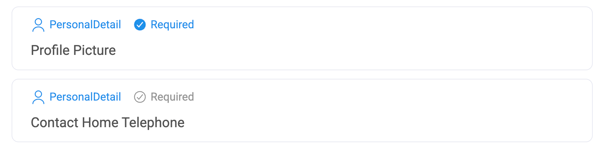
⚠️ Take care with required fields, particularly contact fields. A common issue is the home phone number field being set as required. This field only accepts a landline format and will not accept a mobile number. If an employee tries to enter a mobile number, they will be unable to submit the form at all. Unless a home phone number is genuinely essential, we recommend leaving this field as optional.
- To add more inputs to this section, repeat steps 2 and 3.
- To add a new section to the form, click Add Section at the bottom of the page. All sections will appear along the right-hand side of the screen so you can navigate between them easily.
- When you are happy with your form, click Save in the top right corner.
💡 Tip: The system will flag any unsaved changes on the right-hand side of the screen. Make sure you save before leaving the page.
Tips for building effective Profile forms
- Group related inputs together in sections. For example, keep personal details in one section and emergency contact information in another — this makes the form much easier to follow for the employee.
- Only mark inputs as required if they truly are. Think about what is essential versus what is useful to have. Remember that if a required field has a specific format — such as the home phone number field — an employee who cannot meet that format will be completely unable to submit the form.
- Profile forms are well suited to onboarding packs. Including one in a new team member's welcome pack means they can submit their own personal details from day one, reducing manual data entry for your HR team.
- They are also useful for keeping records current. If your organisation goes through a period of change — such as a new payroll system or updated emergency contact requirements — a Profile form is a straightforward way to collect updated information from your whole team at once.
- Use the preview option to check how the form will appear to the employee before sending it.
What happens next?
Once your Profile form is saved, it is ready to be added to a Pack or sent directly to an employee. When the employee completes and submits the form, the information will be reviewed before updating their profile. When editing the form, you will also have the option to see which packs it is currently used in and preview it as the recipient will see it.