
All settings in this feature are configured at organisation level. This means any changes you make will apply across all sites, not just the one you are currently logged in to.
⚠️ Please note: You will not be able to add or edit any of these settings unless you have the correct permissions assigned to your user role. If you cannot access this area, speak with your system administrator.
Where to find Disciplinaries Settings
- Navigate to App Settings using the menu search bar or the settings icon
- Locate the Disciplinaries section in the left-hand menu
- Select the area you wish to configure:
- Outcomes
- Offence Types
- Disciplinary Types
- Policy Documents
Outcomes
Outcomes are the results you can assign to a disciplinary or grievance once a conclusion has been reached — for example, a verbal warning, written warning, or dismissal. You can build this list to reflect your own company's disciplinary procedure.
To add a new outcome:
- Click + Add or the equivalent add button within the Outcomes section
- Enter a title for the outcome (e.g. Verbal Warning, Final Written Warning, No Action Required)
- Select the outcome type:
- Normal — use this for standard outcomes
- Suspension — use this where the outcome involves a period of suspension
- Enter the expiry in months - type the number of months after which this outcome expires (e.g. 6 for a verbal warning that expires after 6 months)
- Click Save
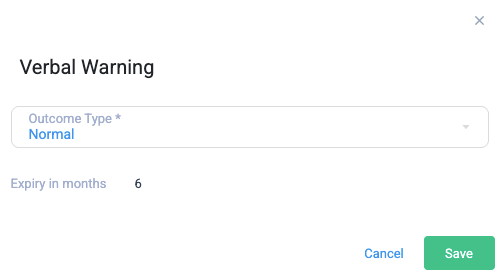
💡 Suspension outcomes work slightly differently. When a Suspension outcome type is selected during the conclusion stage of a disciplinary, an additional field — Suspension effective date — will appear. This allows you to record the date the suspension comes into effect. If you are adding an outcome that involves suspension, always select Suspension here rather than Normal to ensure that field is available when it is needed.
Offence Types
Offence types populate the Offence type dropdown when creating a new disciplinary or grievance record. Adding these in advance means records are logged consistently across your organisation.
To add a new offence type:
- Click + Add within the Offence Types section
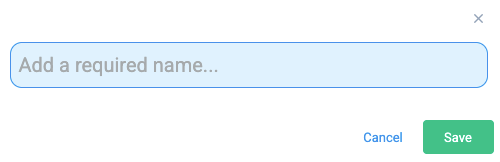
- Enter a title for the offence type (e.g. Lateness, Unauthorised Absence, Misconduct)
- Click Save
Disciplinary Types
Disciplinary types populate the Disciplinary type dropdown when creating a new record. This is typically used to distinguish between a Disciplinary and a Grievance, though you can configure this list to reflect your organisation's terminology.
To add a new disciplinary type:
- Click + Add within the Disciplinary Types section
- Enter a title for the disciplinary type
- Click Save
👉 Click here to see our help article on how to manage a disciplinary investigation for your site.