
The Your day at a glance section on your home screen gives you a quick summary of the information and tasks most relevant to you, all in one place, as soon as you open the app.
Each item is called a feature. Each one connects to a different area of Alkimii, for example, your shifts, checklists, or leave requests.
💡 Good to know: Tapping any feature card will take you directly into that area of the app so you can take action straight away.
You choose which features appear on your home screen, what information each one shows, and the order they appear in. This means every team member can set up a view that suits their role and their day.
Setting up your day at a glance for the first time
The first time you use this feature, tap Get started on the home screen. This will open a short setup flow.
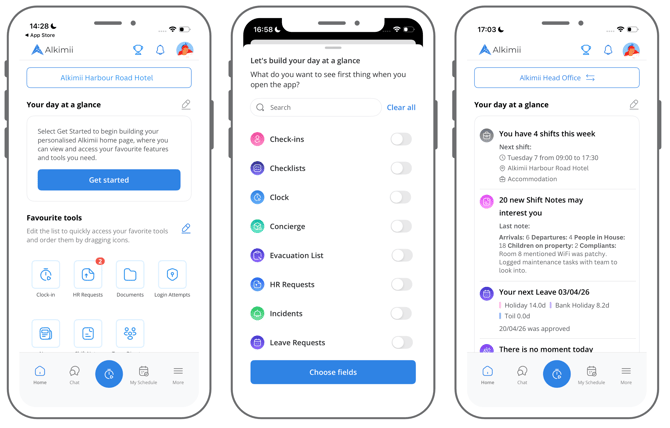
Step 1 — Choose your features
- A list of available features will appear, each with a toggle.
- Turn on the features you want to see on your home screen.
- Use the search bar at the top if you want to find a specific feature quickly.
- Tap Choose fields to move to the next step.
Step 2 — Choose what to show for each feature
- For each feature you selected, you can choose which details to display.
- Tap the dropdown arrow next to a feature name to see the available options.
- Some information is always visible — you cannot hide it. Other details are optional and can be turned on or off.
- Tap Continue to Arrange when you are ready.
💡 Good to know: If you do not make any changes in this step, the default selections will apply. You can always come back and adjust these later.
Step 3 — Arrange your features
- Drag and drop the features into the order you prefer.
- The order you set here is what you will see on your home screen.
- Tap Save & Apply to finish.
Your home screen will update straight away.
Editing your settings
You can update your day at a glance settings at any time.
- On the home screen, tap the pencil icon next to "Your day at a glance."
- Make your changes, add or remove features, adjust what each one shows, or reorder them.
- Tap Save & Apply. Your home screen will update immediately.
⚠️ Please note: Your day at a glance settings are personal to you. Changing them will not affect any other team member's view.
Available features
The table below lists every available feature and the information it can display.
⚠️ Please note: The features available to you will depend on your Alkimii package and your access level. You may not see all of the features listed below.
Items marked Always visible will always show when that feature is active.
Items marked Optional can be turned on or off.
Alkimii People
| Clock | |
| Information Shown | Availability |
| Clock in / clock out status | Always Visible |
| Your shift starts at | Optional |
| Your shift finishes at | Optional |
| HR Request | |
| Information Shown | Availability |
| Completed requests |
Optional |
| Requests not yet completed | Optional |
| Last request status | Optional |
| Leave Request | |
| Information Shown | Availability |
| Leave Requests | Always Visible |
| Holiday, Bank Holiday and TOIL balance | Optional |
| Last approved leave | Optional |
| Leave Approvals | |
| Information Shown | Availability |
| Pending requests | Always Visible |
| Newest requests | Optional |
| Oldest requests | Optional |
Employee Experience
💡 Good to know: The features in this section are part of the Employee Experience package. If you would like to learn more, please contact our customer success team.
| Awards | |
| Information shown | Availability |
| Pending awards | Always visible |
| Latest awards | Optional |
| Upcoming awards | Optional |
| Check Ins | |
| Information shown | Availability |
| New Check ins | Always visible |
| Upcoming check ins | Optional |
| Next check in | Optional |
| Moments | |
| Information shown | Availability |
| Today's moment | Always visible |
| Weekly moments | Optional |
| Next moment | Optional |
| Surveys | |
| Information shown | Availability |
| Number of pending surveys | Always visible |
| Next pending survey progress | Optional |
| Next pending survey end date | Optional |
Property
| Checklists | |
| Information shown | Availability |
| Number of checklists due soon | Optional |
| Progress of your checklists | Optional |
| Checklists assigned to you | Optional |
| Concierge | |
| Information shown | Availability |
| Number of new packages | Optional |
| Latest package delivered to guest | Optional |
| Number of packages delivered to concierge | Optional |
| Evac List | |
| Information shown | Availability |
| Evacuation status | Always visible |
| Last evacuation date | Optional |
| Employees on duty | Optional |
| Lost & Found | |
| Information shown | Availability |
| New lost and found items | Always visible |
| Last item with a status change | Optional |
| Second item with a status change | Optional |
| Maintenance | |
| Information shown | Availability |
| New Maintenance tasks | Always visible |
| Pending urgent maintenance tasks | Optional |
| Number of maintenance tasks assigned to you | Optional |
| Proactive Maintenance | |
| Information shown | Availability |
| Health Score | Always visible |
| Room progress | Optional |
| Rooms remaining to check | Optional |
| Shift Notes | |
| Information shown | Availability |
| New shift notes that may interest you | Always visible |
| Shifts tagged to you | Optional |
| Last shift note | Optional |
| Suppliers | |
| Information shown | Availability |
| Number of suppliers | Always visible |
| Latest supplier | Optional |
| Total suppliers in the system | Optional |
| Visitors | |
| Information shown | Availability |
| Number of visitors today | Always visible |
| Number visitors | Optional |
| Number of missing permits returns | Optional |
Frequently asked questions
A feature I expected is not showing in my list. Why?
Some features are only available depending on the features enabled for your property or your user role. If a feature is not visible, speak to your manager or system administrator.
Can I remove all features?
Yes, if you turn off all features by selecting clear all on the configuration screen. "Your day at a glance" section will be empty on your home screen. You can re-add features at any time by tapping the pencil icon.
What does "always visible" mean?
When a feature is active, some of its information will always be shown and cannot be hidden. These are the most important details for that feature. Other information within the same feature can be turned on or off as needed.
Will my changes affect my colleagues?
No. Your day at a glance is personal to you. Each team member sets up and manages their own view independently.