
What is Shift Swap and why use it?
Sometimes a team member needs cover for a shift, maybe an appointment came up, or a personal commitment changed. Instead of calling around or messaging the manager directly, Shift Swap handles the request within the app.
The process is simple: one person requests a swap, a colleague accepts or declines, and then the manager approves or declines before the roster updates. No manual changes needed until everyone has agreed.
This is useful in busy hospitality environments, where last-minute changes are common and communication happens across different languages and shifts.
The full journey at a glance
You request a swap → Team member is notified → Team member accepts/declines → Manager approves/declines → Roster Updates
If your colleague declines, the request ends there, and nothing changes on the roster. If the shift date arrives before anyone responds, the request expires automatically.
How to request a shift swap?
Please note: You cannot request a swap for a shift that starts within the next 24 hours. If the swap option is not showing for a shift, this is most likely the reason. Plan ahead and send requests as early as possible.
You can start a swap request directly from your roster view. There are two ways:
-
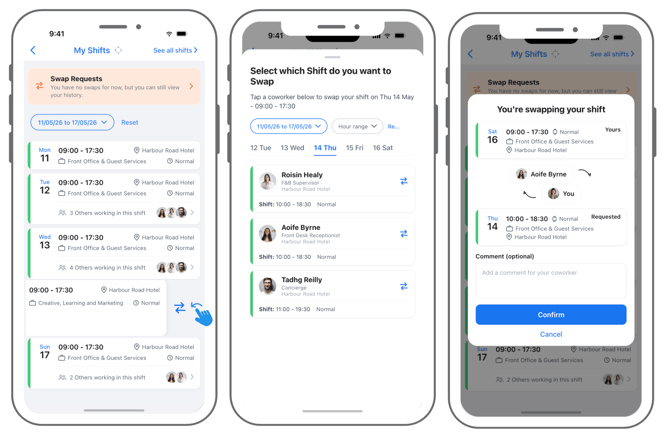
Open the app and go to My Schedule > My Shifts. You will see your upcoming shifts for the week.
- There are two ways to start a swap request:
- Option A — Quick swap (fastest): Swipe left on the shift in your roster to reveal the swap icon and tap it.
- Option B — Through the shift menu: Tap into the shift, then tap the three vertical dots (⋮) in the top corner to open the shift menu. Select Shift Swapping.
- The "Select which Shift do you want to Swap" screen will open. It shows the shifts you are swapping and a list of available colleagues. Use the filters to narrow down who you want to swap with.
- Choose a specific date: scroll through the days along the top of the screen, or tap the date range to open a full calendar picker and jump to any week.
- Find a shift that suits you: Filter by shift time to find cover that works for your schedule.
- Tap a team member's shift. You will see their shift details - date; time; team and role - before confirming.
- You can add a short message to explain the reason. This is optional, but helpful for your team member and reports to manager.
- Tap Confirm. Your colleague will receive a notification straight away.
💡 Sending a reminder: If your colleague has not responded and time is running short, you can send them a reminder from within the swap request. Remember — the request expires automatically when the shift date arrives, so do not leave it too late.
How to respond to a shift swap?
If a colleague sends you a swap request, you will get a push notification. You can also find all requests waiting for you under Swap Requests → Requests to Me.
- Open the notification, or go to Swap Requests → Requests to Me in the app.
-
Tap the request to see both shifts side by side — yours and your colleague's. Check the dates, times, and location carefully before deciding.
-
Tap Approve Swap to accept, or Decline Swap if you cannot cover the shift.
- If you approve, you will see: "You have approved the swap with [name]. Now waiting for the manager to approve." The request then moves to your manager for final sign-off.
Understanding swap statuses
What Team Members see:
- Awaiting Coworker Response: You have sent the request. The team member has not yet responded. You can send them a reminder from within the request.
- Waiting for Manager: Both team members have agreed. The manager has not yet responded.
- Approved: The reports to manager has approved the swap. The roster has been updated for both people.
- Declined by Requested User: The swap was declined, either by your team member. No changes were made to the roster.
- Rejected by Manager: The swap was declined, either by your manager. No changes were made to the roster.
- Cancelled: The request was cancelled before it was completed. No changes were made to the roster.
How managers handle swap requests?
Once both team members agree, their reports to manager is notified. The manager has the final say on whether the swap goes ahead.
- Open the Shift Swapping tool from the More menu or app search. Filter to Pending if needed.
-
Tap a request to see both shifts, the team members involved, and any message from the person requesting.
- Tap Approve or Decline. If approved, the roster updates automatically for both team members straight away.
Understanding swap statuses
What Managers see in Shift Swapping tool:
- Pending: Both team members have agreed. This swap is waiting for your decisions.
- Approved: You approved this swap. The roster has been updated for both team members.
- Declined: The swap was declined, by your manager. No changes were made to the roster.
- Expired: No one responded before the shift date arrived. The request closed automatically and the roster was not changed.