
This feature allows managers to formally record the reason for the absence and complete any relevant follow-up actions.
🔒 Access: You will only be able to complete this process if you have permission to view Staff Profile Details in Alkimii People and the feature is enabled for your site.
Getting Started
- Navigate to the Staff Profile using the Menu and locate the employee from the list.
- In the left navigation bar, click "Holiday" to expand the section, then select "Leave".
- You will land on the Leave screen. Any unreviewed absences will be visible in the Rostered section.
💡 The Review absence button in the top right of the screen displays a red bubble with a number — this tells you at a glance how many absences are currently awaiting review for this employee.
Reviewing an Absence
Step 1 — Open the Review Absence form
Click "Review absence" in the top right of the screen.

A pop-up will appear showing the employee's name at the top, along with a dual-month calendar.
Step 2 — Select the absent shifts
Look for the dates marked with a red dot on the calendar — these indicate shifts where the employee was absent. Click each date you wish to review. Selected dates will highlight in blue.
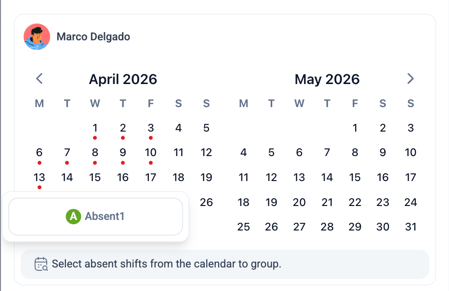
The banner below the calendar reads: "Select absent shifts from the calendar to group." This means you can select multiple dates together and record one absence reason across all of them — for example, if an employee was absent across several days due to the same illness.
💡 Tip: Grouping related dates together keeps the Rostered section tidy and makes it easier to identify absence patterns over time.
Step 3 — Select an absence reason
Click the Absence reason dropdown and select the relevant reason from the list — for example, Cold, Cough, Flu - Influenza. These options are pre-configured in your system settings by your administrator.
If you feel a reason is missing from the list, speak to your system administrator about updating the absence reason settings.
Step 4 — Complete the follow-up check boxes
The following tick boxes will appear. Complete each one as applicable:
- Return to work form completed? — tick this once the return to work conversation or form has been completed with the employee.
- Work related? — tick this if the absence is linked to a workplace incident or injury.
- Sick lines received? — tick this if the employee has provided a medical certificate or sick note.
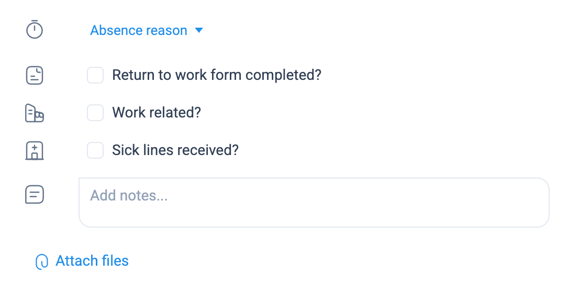
These check boxes help ensure your site remains compliant with UK and Northern Ireland absence management requirements and maintain a clear record for any future reference.
Step 5 — Add notes and attachments
- Use the Add notes field to record any additional context relevant to this absence. This is not visible to the employee.
- Use Attach files to upload any supporting documentation such as a sick note, medical certificate or related correspondence. These are also not visible to the employee.
Step 6 — Create the record
Once you are satisfied with the entry, click "Create" to save the absence review.
The completed record will now appear in the Rostered section of the employee's Leave profile, with the relevant details logged against the absence period.
A Note on Bradford Score
Please be advised: Absences recorded and reviewed through this feature will contribute to an employee's Bradford Score, as these are unplanned absences from the roster. This is different from long-term leave added through + Roster leave, which does not affect the Bradford Score.