
⚠️ Important:
To complete the offboarding process correctly, the Leaver Pack must be issued, completed, and approved while the employee is still active on Alkimii.
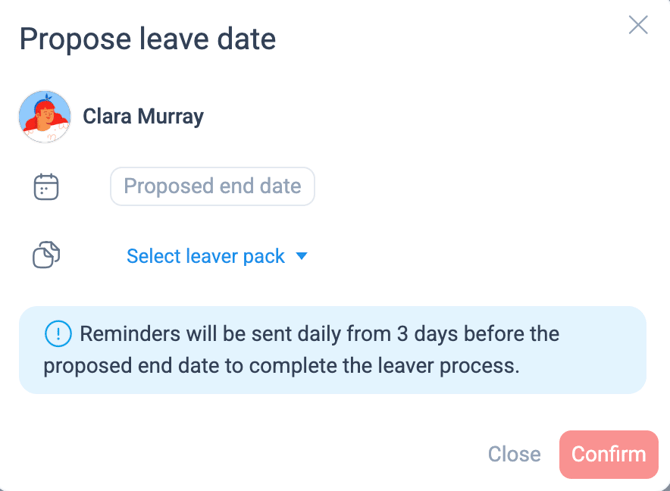
You must select "Proposed Leaver" – not "Leaver" – when starting this process.
If the employee is marked as a leaver too early, they will lose access to the system and won’t be able to complete or accept the pack, which will block the offboarding workflow.
Step 1: Set Employee as a Leaver & Issue the Leaver Pack
Navigate to the staff profile and locate the employee you wish to leaver.
- Within the staff profile, click the 3 vertical dots on the profile card and select "Leaver" from the options
|
 |
Step 2: Completing the Leaver Pack on Mobile
The employee will receive a notification that a HR Pack is pending completion via their mobile app.
- To complete the pack, open the HR Request on the mobile app
⚠️ Important:
The contents of the leaver pack will vary from one organisation to another, based on how the system has been configured.
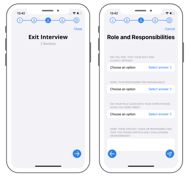
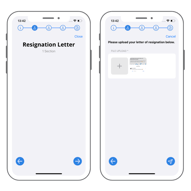
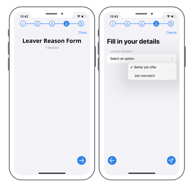
- Fill out the information as it appears in the pack - this might comprise of:
|
Exit interview questionnaire
|
Resignation Letter Upload
|
Leaver Reason Form
|
Step 3: Approving the Pack in the HR Queue
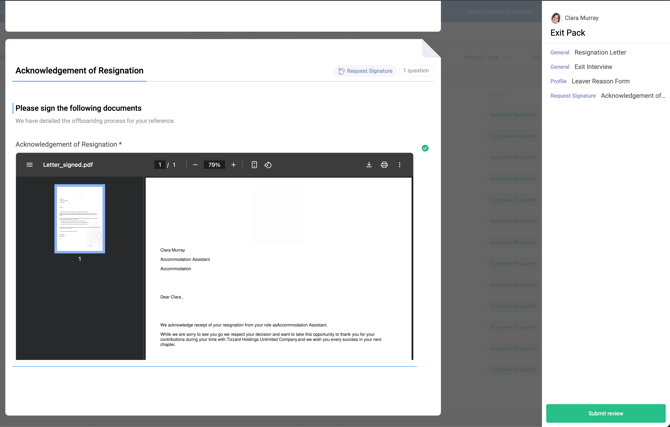
Now that the employee has completed the pack, you will be able to approve the pack in the HR Queue and the documentation provided will populate into the staff profile and compliance dashboard.
- Open "HR Automation" from the menu
- Filter by "Leaver Pack" type to quickly find the pack for approval.
|
|
- Once approved, this information will feed into the employee's Staff Profile and offboarding compliance dashboard.
💡 Tip: Once the HR Pack has been returned and approved, you can create an "Acknowledgement of Resignation Letter" pack in Alkimii to share with the employee if you wish.
Step 4: Complete the Leaver Process
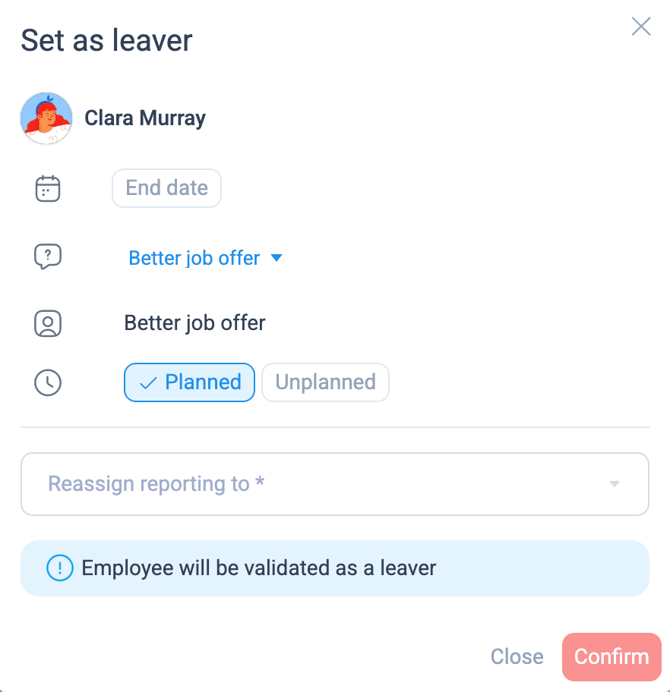
3 days before the leaving date, you will receive a notification reminder. At this point, you will return to the staff profile to complete the leaver process.
- Within the staff profile, click the 3 vertical dots on the profile card and select "Leaver", then choose "Set as a Leaver".
|
|
❗️Undo a Proposed Leaver
If you need to reverse a proposed leaver before the process is completed:
- Within the staff profile, click the 3 vertical dots on the profile card and select "Leaver".
- Choose "Remove Proposed End Date" and confirm.
- The employee will no longer be marked as a proposed leaver