
In this article we will cover:
- Step 1 - Setting Up the Clawback Amount
- Step 2 - Adding Maternity or Paternity Leave
- Step 3 - Reviewing the Cost Breakdown
Before You Begin
When an employee goes on maternity or paternity leave, they are entitled to statutory payments. In the UK and Northern Ireland, employers can reclaim a portion of these payments from HMRC, this is known as a clawback.
Alkimii supports this process by allowing you to record the clawback amount against the employee's profile and automatically deduct it from their weekly cost totals. This gives you a clear and accurate picture of your true payroll costs during any period of family leave.
⚠️ Please note: This guide covers how to record and apply maternity and paternity leave in Alkimii. For guidance on your legal obligations regarding statutory pay entitlements in the UK or Northern Ireland, please consult your payroll provider or visit GOV.UK or nidirect.gov.uk.
Step 1 – Setting Up the Clawback Amount
The clawback is the amount your business can recover from HMRC for each week the employee is on paid maternity or paternity leave. You will need to enter this figure against the employee's profile before leave begins.
How to set up the clawback
- Go to Staff Profile and open the relevant employee's profile.
- Navigate to Employment in the left-hand menu.
- Select Payment.
- Scroll down to the Payroll Settings section.
- Tick the checkbox labelled Apply clawback for maternity / paternity pay.
- A Clawback field will appear, enter the weekly amount your business can reclaim from HMRC.
- Click Save.
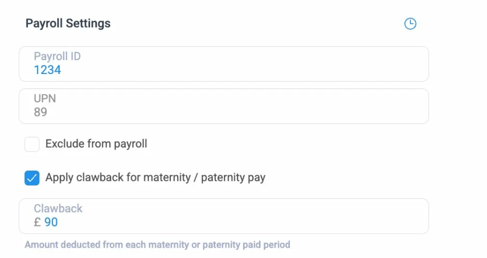
💡 Good to know: The clawback amount entered here is deducted from the employee's total weekly cost each time a maternity or paternity paid period is processed. This reflects the actual net cost to your business after the government contribution.
Need to backdate a clawback?
If the employee has already begun their leave and you need to apply the clawback to previous weeks, please contact our Customer Success team directly. Backdating clawback figures requires a manual adjustment on our side.
Step 2 – Adding Maternity or Paternity Leave
Once the clawback is configured, you can add the leave to the employee's profile. Maternity and paternity leave in the UK is typically split into two paid periods:
- Weeks 1–6: Paid at 90% of average weekly earnings (no cap)
- Weeks 7 onwards: Paid at the statutory flat rate (currently capped per week by HMRC)
Alkimii handles this by allowing you to set up two separate periods within the leave builder, each using a different shift type. The shift type names will depend on how your system was configured during your site build — for example, you might see options such as Maternity 100%, Maternity 50%, or SMP (Statutory Maternity Pay). If you are unsure which shift types to select, check with your team.
⚠️ Important: This leave type is for long-term leave use only. You will see a reminder of this when adding the leave in the system.
How to add maternity or paternity leave
- Go to Staff and open the relevant employee's profile.
- In the left-hand menu, navigate to Holiday and then select Leave.
- Click Roster Leave — this opens the long-term leave builder.
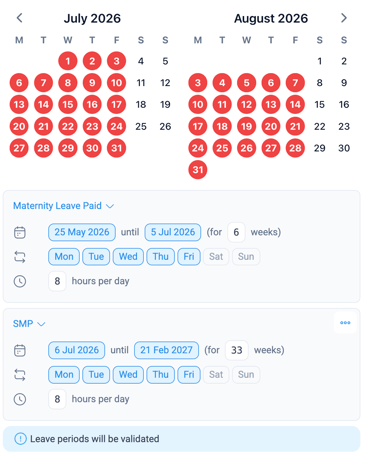
- A calendar view will appear showing the current and upcoming months. Any existing shifts that conflict with the leave dates will be highlighted on the calendar in red.
💡 Good to know: You will see a notice that says "Existing conflicting shifts have been highlighted on the calendar" — this is a helpful prompt to review the roster before confirming the leave. Leave periods will also be validated before saving.
Setting up paid periods
Below the calendar, click Add Period to begin configuring how the leave is paid. You will need to set up one period for each stage of the leave.
Period 1 – First 6 weeks at 90%
| Field | What to enter |
| Start Date | First day of leave (e.g. 01/04/2026) |
| Weeks | 6 |
| Days of the Week | Select the days the employee is contracted to work |
| Shift Type | Select the shift type for the higher pay rate — e.g. Maternity 90%% or as configured for your site |
Period 2 – Remaining statutory weeks
Click Add period to add a second row.
|
Field |
What to enter |
|---|---|
| Start date | This date will auto-populate to the day after the end of Period 1. |
| Weeks | Typically 33 weeks (adjust based on the employee's agreed leave length) |
| Days of the Week | Select the days the employee is contracted to work |
| Shift type | Select the shift type for the statutory rate — e.g. SMP or as configured for your site |
💡 Good to know: The total paid period for maternity leave under UK statutory rules is up to 39 weeks. The split is 6 weeks at 90% pay, followed by up to 33 weeks at the statutory flat rate. Some employees may take less — adjust the weeks in Period 2 accordingly.
-
Add any relevant Notes or Attachments (e.g. MATB1 certificate or letter from the employee).
-
Click Save to confirm.
Step 3 – Reviewing the Cost Breakdown
Once the leave has been added and the clawback configured, you can review the weekly cost breakdown to see exactly how the pay and deductions are being calculated.
How to view the breakdown
- Navigate to the Weekly Costs view from your main menu.
- Scroll down to locate the employee.
- Click on the figure in the Cost column next to their name.
- A detailed breakdown will appear showing:
| Line |
What it means |
| Mon-Sun pay | Total pay for standard working days in the week |
| 90% pay calculation | Days covered by this shift type will show the full rate crossed out, with the 90% amount applied |
| Maternity Satutory calculations | Weeks covered by the statutory rate will display the capped weekly pay |
| EMPSRI (NI) | Employer's PRSI / National Insurance contribution |
| Holiday accrual | Accrued holiday pay based on the amount paid |
| Pension | Penison contribution calculated on the paid amount |
| Total | Gross weekly cost before clawback |
| Clawback | The amount being recovered, shown as a deduction from the total |
| Final Total | Net weekly cost to your business after the clawback is applied |
💡 Example: If the gross weekly cost is £530.76 and your clawback amount is £90, the system will display: £530.76 – £90 = £440.76. This is the true cost to your business for that week.