
What are Tags?
A tag is a placeholder in a document. When Alkimii creates the document, it replaces each tag with real information.
It works like a fill-in-the-blanks form. For example, you add the tag ANNUAL SALARY to a contract. When Alkimii creates the contract, the tag changes to the employee's salary, such as €32,000 or £28,500.
There are two types of tags:
- Smart Fields: ready-made tags. Alkimii fills them automatically with employee and organisation information.
- Custom tags: tags you create for details that are specific to your site.
Where to find Tags
- Go to App Settings.
- Select HR Automation.
- Select Tags.
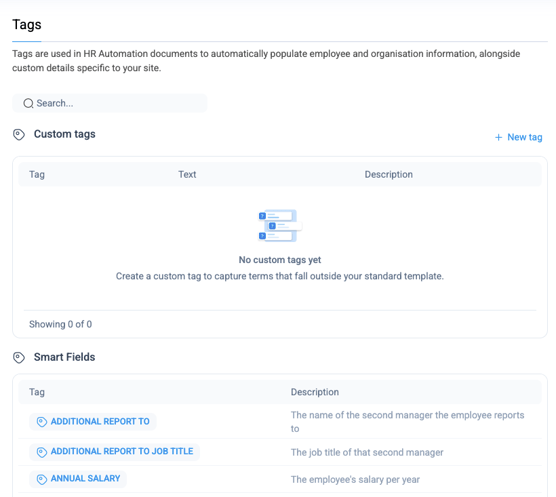
You will see two sections: Custom tags and Smart Fields. Use the Search bar at the top to find a tag quickly.
Smart Fields
Smart Fields are ready-made tags. They use information saved in Alkimii, so the result is different for each employee.
For example, the Smart Field ANNUAL SALARY adds the employee's salary per year to the document.
You can see the full list of Smart Fields and their descriptions on the Tags page, under Smart Fields.
Before you use Smart Fields: check that the employee's details in Alkimii are correct and complete.
📚 For more information, see How to use smart fields in Contracts or Letters
Custom tags
Why use custom tags?
Many onboarding documents use the same wording. For example, your contract, welcome letter and staff handbook may all include the same data protection statement.
Without a custom tag, you need to update each document one by one every time the wording changes. This takes time, and it is easy to miss a document.
With a custom tag, you write the wording once. You then add the tag to every document that needs it. When you update the custom tag, the new wording appears in all of those documents.
Update once. Every document stays the same.
When to use a custom tag
Use a custom tag for wording that you use again and again in different documents, such as:
- Disclaimers and legal statements, for example a data protection (GDPR) statement
- Right to work statements
- Probation period terms
- Uniform and grooming rules
- Staff meals and dietary options
- Site information, such as staff parking, transport or the location of the prayer room or quiet room
How to create a custom tag?
- Go to App Settings > HR Automation > Tags.
- In the Custom tags section, click + New tag.
- In the first field, type a tag name. This field is required.
- In the large text box, type the wording that will replace the tag in your documents. You can use bold, italics and underline. You can also use the undo and redo buttons.
- In the Add more detail field, describe what the tag is for. This helps your colleagues understand when to use it.
- Click Save.
Your new tag appears in the Custom tags list. The list shows the Tag, the Text and the Description.
Example of a custom tag
|
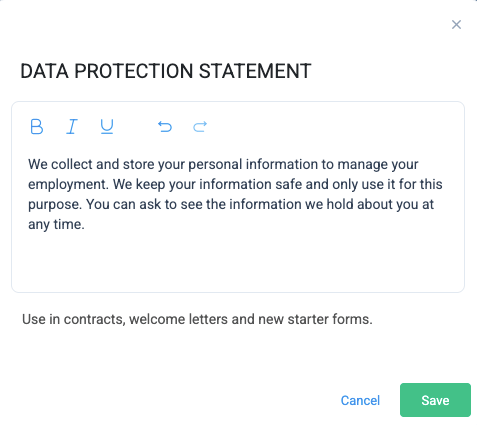 |
Your hotel uses this tag in three onboarding documents. Next year, the wording changes. You update the tag once, and all three documents now show the new wording.
Using tags in your documents
Add tags to your HR Automation documents where you want the information to appear. When Alkimii creates a document for an employee, it replaces each tag with the correct information.
FAQ's
What is the difference between a Smart Field and a custom tag?
A Smart Field adds information from Alkimii, so it changes for each employee. A custom tag adds wording that you write, so it is the same for every employee at your site.
What happens when I update a custom tag?
The new wording appears in every document that uses the tag. You do not need to update each document separately.
Can I create my own Smart Fields?
No. Smart Fields are set up by Alkimii. If you need extra wording, create a custom tag.