
The Shifts page on Alkimii is a powerful reporting and management tool. It gives you a live, filterable view of every rostered shift across your organisation, searchable by site, date, staff, department, contract type, and more. Whether you need a quick snapshot of today's roster or a detailed export for analysis, Shifts puts that information at your fingertips.
Getting to the Shifts Page
Use the menu search bar to navigate to Shifts. The page defaults to today's date when it opens.
Can't see this page?
This content is only visible to users with the appropriate permission level in Alkimii. If you're unable to view it, it likely means your account hasn't been granted access to this section.
If you think you should have access, please contact your line manager or system administrator to have your permissions reviewed.
Using Filters
The Shifts page includes an expanded set of filters to help you narrow down results quickly. Filters appear along the top of the screen.
Customising your filters: Use the toggle in the top right of the screen to choose which filters are visible. Switch each one on or off depending on what's relevant to your role.
Available filters
- Site — Narrow results to a specific location or workplace.
- Date — Set a start and end date for your search using the date picker.
- Breaks Not Taken — Flag shifts where no break was recorded.
- Include leavers — Show shifts for employees who have been leavered.
- Absent only — Show absent shifts only ( based on the configuration of absent shifts for your shift)
- Clocked to Shift — Filter by whether the employee clocked in against their rostered shift.
- Department — Show shifts for a particular team or business area.
- Employee — Search for an individual employee's shifts.
- Contract Type — Filter by contract category (e.g. full-time, part-time, casual).
- Payment Frequency — Group by how often the employee is paid.
- Weekly
- Monthly
- 4 weekly
- Shift Type — Include or exclude specific shift types. These would have been confured during your inital install with Alkimii.
- Extra Hours Type — Identify overtime, on-call, or other additional hour categories.
- Unpaid
- Paid
- Time in lieu
- Age — Filter employees by age band — useful for working time compliance checks.
- Staff under 16 years old
- Staff under 18 years old
- Staff under 20 years old
- Staff under 21 years old
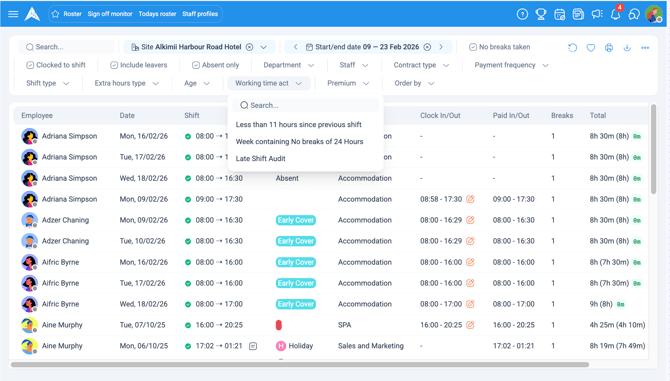
- Working Time Act — Surface shifts that may breach Working Time Directive thresholds.
- Less than 11 hours since previous shift
- Week containing No breaks of 24 hours
- Late Shift Audit
- Premium — Highlight shifts attracting premium pay rates.
- Night
- Sunday
- Order By — Sort results by employee name, department, or shift start in either ascending or descending order.
To remove an active filter, click the X beside it. The table will refresh immediately.
Understanding the Shifts Table
Each row represents a single rostered shift. Here's what each column shows:
- Employee — Name of the rostered employee, with their profile photo if set.
- Date — The date of the shift.
- Shift — The scheduled start and end time.
- A green dot indicates the end of shift.
- A ⚠️ warning symbol appears if the gap since the last shift is shorter than the recommended rest period.
- A note icon means a note has been associated to this shift in the roster.This might include the automated message for approved leave.
- Type — The shift type, displayed using the preset colour coding from your roster (e.g. Holiday in pink, or custom types like "Morning Cover").
- Department — The team the employee is rostered under.
- Clock In/Out — The employee's actual clocked times. Displays "Not set" if no clock record exists.
- An orange icon will appear if the shift was manually clocked in/out.
- Paid In/Out — The paid hours recorded for the shift, where applicable.
- Breaks — Number of breaks recorded. Shows 0 if none taken.
- Total — Total hours worked or rostered for the shift.
Note: The Type column respects your roster's preset colour scheme, so shift types will look consistent across both views.
Row-Level Actions
Each row has a set of actions available on the right-hand side. What you see will depend on your permission level and access rights within Alkimii.
-
Editing Clock Times
You can edit clock times directly from the Shifts view without leaving the page.
To edit a clock time:
- Click on the timer icon to Edit Clock
- A pop-up window will appear showing:
- The employee's name
- The shift date and scheduled time (e.g. 18/2/2026, 09:00–17:30)
- Whether biometric clocks have been recorded (if no biometric clocks are set, this will display "No biometric clocks set.")
- Editable fields for the clock in and clock out times
- A "Next day" checkbox if the shift spans across midnight
- A notes field where you can add context about the clock adjustment
- Edit the clock times as needed using the hour and minute selectors.
- Add a note in the "Add notes about this shift..." field if you want to record why the adjustment was made (optional but recommended for audit purposes).
- Click Save to apply the changes.
Additional options Click the three-dot menu (⋯) beside the Save button to access:
-
- Clock to shift — Automatically set the clock times to match the rostered shift times.
- Delete manual clock — Remove any manually entered clock record. This option only appears if a manual clock has been added.
💡 Tip: Using the "Clock to shift" option is a quick way to approve the rostered hours when an employee forgot to clock in or out but you want to pay them for their scheduled time.
- View on Roster — Jump directly to this shift in the Roster view.
- View Profile — Open the employee's full Alkimii profile.
- View History — See the full audit trail for changes made to this shift.
- Delete — Remove the shift record. This action is permanent and restricted by permission level.
Note: Not all users will see every action. If you can't see an option you need, speak to your Alkimii administrator about your access level.
Exporting Your Results
Once you've filtered the table to show exactly what you need, you can export the view for further analysis or reporting.
- To export to Excel or CSV, click the download icon.
- To print or save as a PDF, click the printer icon.
⚠️ Searches returning more than 2,000 results cannot be downloaded. Apply additional filters to reduce your results before exporting.