
In the UK and Northern Ireland, employers are legally required to pay Statutory Sick Pay (SSP) to eligible employees who are off sick. This article will walk you through how to record SSP shifts within Alkimii so you can stay compliant with the latest UK legislation and keep your payroll accurate.
Before you begin: You must provide Alkimii with a payroll element in order for us to set up the SSP rule for your property. If you have not done this yet, please contact hello@alkimii.com
What is UK Statutory Sick Pay?
As of April 2026, Statutory Sick Pay is now payable from the first full day of sickness absence and is available to more employees.
SSP is calculated at 80% of the employee's Average Weekly Earnings, up to a maximum weekly rate of £123.25. This means lower-paid employees receive a proportionate SSP amount rather than being excluded altogether.
How SSP is Calculated
SSP is the lower of 80% of Average Weekly Earnings, or the weekly flat rate of £123.25.
For example:
- An employee earning £200/week → 80% = £160 → SSP = £123.25 (flat rate is lower)
- An employee earning £135/week → 80% = £108 → SSP = £108 (80% is lower) Armstrong Watson
Average weekly earnings are calculated based on the 8 weeks before the sickness absence began. SSP can be paid for up to 28 weeks in total.
Adding an SSP Shift – Roster Screen
|
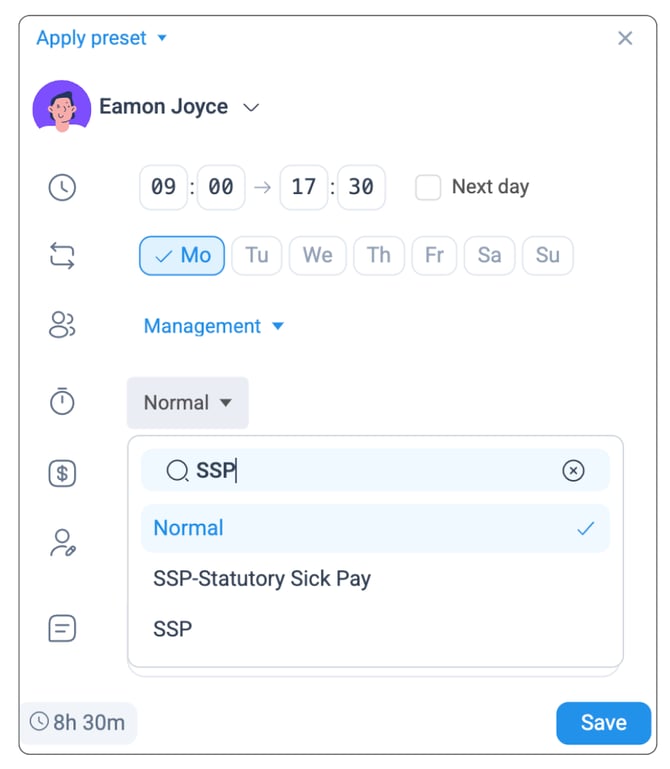 |
Once you have allocated 28 weeks of SSP shifts, you will receive a notification on the roster screen indicating that the employee has reached the legal maximum entitlement. This will not prevent you from recording further absence, but SSP will no longer be payable beyond this point.
Adding an SSP Shift – Today's Roster Screen
- Using the menu search bar, type "Today's Roster"
- Navigate to the correct day using the calendar and date picker
- Select "Add Shift" in the top right-hand corner
- In the pop-up, set Type to "Absent" and Absent Code to "SSP"
- Enter the shift start and end times and Save
Once saved, the SSP shift will appear in Today's Roster view, clearly labelled for your records.