
⚠️ Access & Permissions: Only users with the appropriate access level and permissions can view and edit the Site Details tab. If you don't see this option, speak to your system administrator.
What is this and why does it matter?
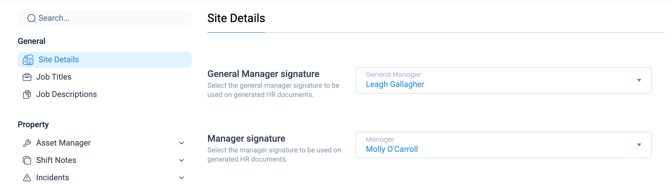
Within App Settings, the Site Details tab allows you to assign two signature options, a General Manager signature and a Manager signature, that are used as smart fields in documents generated through HR Automation.
Once configured, these signatures are automatically pulled into contracts, letters, and other HR paperwork without any manual input. Having both options gives you flexibility over which documents carry which signatory, some may need just one, others may require both. When a signatory changes, you simply update the name here and all future documents reflect that immediately.
How to set or update a signature?
General Manager Signature
- Navigate to App Settings and select the Site Details tab
- Locate the General Manager signature field
- Click the dropdown and select the appropriate person from the list
- The selected name will now populate wherever the General Manager signature field appears in your automated HR document templates
Manager Signature
- On the same Site Details tab, scroll to the Manager signature section
- Click the dropdown and select the relevant manager
- This name will populate wherever the Manager signature field is used in your document templates
💡 Tip: The names available in both dropdowns are drawn from your user list.
Keeping signatures up to date
Review your signature settings whenever there's a change in personnel. Outdated signatures on formal HR documents can cause confusion or compliance issues, a quick check here after any relevant staffing change keeps everything running smoothly.
👉 For more information on using the smart fields in HR Automation, view our help article!