
With the start of a new holiday year for many customers and holiday cutovers freshly processed now is the perfect time to familiarise yourself with where to find employee balances and how to read them clearly.
We regularly receive questions about where holiday figures live in Alkimii, so here are our top tips to help you stay one step ahead this year.
👤 Tip #1: Check Balances in the Staff Profile
Balances are also visible within each employee’s profile:
🔍 Profile Card:
Quick-view bubbles appear at the top-left beside contract details.
🗂 Holidays Section:
Open the profile → go to Holidays → select Holiday Balances to see a detailed breakdown.
💡Click the “!” for Full Details:
Spot the “!” icon beside a balance? Click it to view:
- The period covered
- How the figure was calculated
- Supporting details and hours
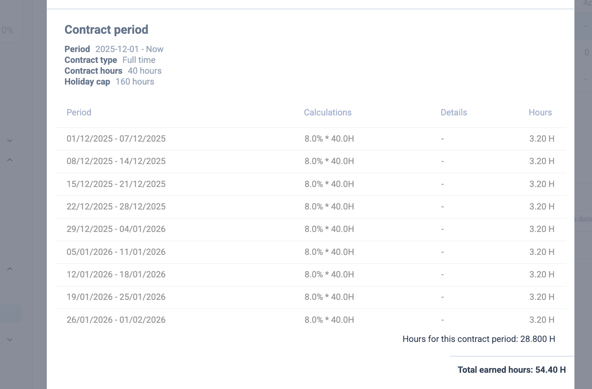
Top Tip: A great way to get instant clarity when reviewing balances.
📖 Tip #2: Understand What Each Column Means
Inside the Holiday Balances screen, here’s what the figures represent:
- Opening Hours
Carries over from the previous holiday year once the cutover is complete.
- Earning Hours
Accrues as payroll weeks are closed — and may vary depending on contract type.
- Taken Hours
Includes leave already taken and any future rostered holiday shifts (shown in hours).
- Balance calculation
Opening + Earned - Taken = Current Balance
Opening + Earned - Taken - Approved (Future) = Balance including Future rostered
🔄 Tip #3: Switch Between Days & Hours
You can view holiday balances in hours or days, depending on what suits your team or personal preference.
How to toggle the view:
- Head to the Holiday Balance page.
- Click the text beside “Displayed in” at the top-left of the table.
- Switch between Days and Hours.
This will also instantly update the purple and pink balance bubbles shown on the employee profile card.
👉 Prefer days by default? Enable this in your Settings within Alkimii.
Check out our Help Centre for more on customising your preferences.
📅 Tip #4: Check Different Holiday Years
Need to review previous balances or double-check this year’s cutover?
Use the Year dropdown on the Holiday Balance page to switch between holiday years and review different timeframes.
📊 Tip #5: Use the Holiday Balance Report
Want to see everyone’s balances in one place?
The Holiday Balance Report lets you view:
- Current balances
- Hours earned
- Leave taken
You can also refer back to past holiday years directly within the report, making it perfect for audits, payroll checks, or answering employee queries quickly.