
In this article, you'll learn how to:
- Use the new Raise Pay Floor option to bulk update employee pay rates
- View pay floor history
- Revert a change if needed
What is the Pay Floor Feature?
The Raise Pay Floor option lets you update pay rates for multiple employees at once. This is especially useful at the start of January when the National Minimum Wage increases, saving you from updating each employee one by one.
💡 Good to know: You'll only see certain options if you have the correct permissions. If something is missing, speak to your system administrator.
Step 1 – Open the Pay Rates Screen
|
|
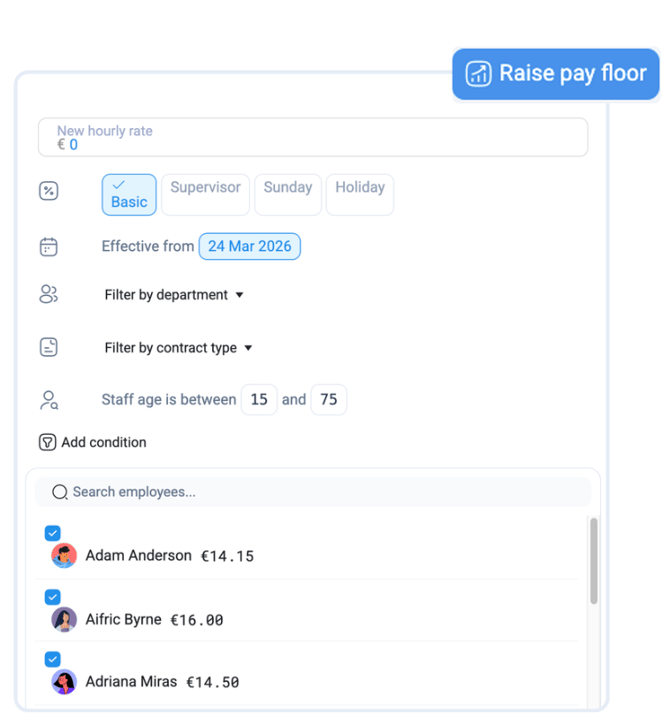
Step 2 – Set Your New Pay Rate
You'll now see a panel where you can configure your update.
| Field | What to do |
|---|---|
| New Hourly Rate | Enter the new rate you want to apply, e.g. £12.70 / €13.50 |
| Rate Type | Choose which rate to update – Basic, Supervisor, Sunday or Holiday Pay Rate |
| Effective Date | Set the date this rate should take effect from |
📅 Tip: For minimum wage increases, set the effective date to 1 January so the change applies from the right date.
Step 3 – Filter Your Employees
Use the filters below to narrow down which employees will be included.
| Filter | Options |
|---|---|
| Department | Select a specific department, or leave blank for all |
| Contract Type |
Filter by the contract type/s |
| Age | Filter by age brackets |
Step 4 – Add a Condition
Conditions let you target only the employees whose current rate meets certain criteria. Using a condition alongside your filters will save you significant time, as it reduces the employee list to only those who genuinely need updating.
⚠️ Take your time here. The more precise your filters and conditions, the less manual work you'll have in Step 5.
Choose one of the following:
- Basic Rate Less Than – updates everyone currently earning below a specified amount up to the new rate. This is the quickest option when applying a minimum wage increase, as it catches all employees who need to move up to the new floor.
✅ Example: Set Basic Rate Less Than £12.70 / €13.50 to update everyone currently earning below the new minimum wage in one go.
- Basic Rate Between – updates everyone whose current rate falls within a range you define. Useful when you want to apply a rise across a specific pay band rather than everyone below a threshold.
✅ Example: Set Basic Rate Between £11.50 / €12.00 and £12.50 / €13.00 to give everyone within that band a standardised increase.
- Basic Rate – updates everyone currently on exactly one specified rate to a new rate. Best used when you want a precise, like-for-like change for a defined group.
✅ Example: Set Basic Rate £11.44 / €12.70 to move everyone on that exact rate to the new amount.
Step 5 – Review and Select Employees
Once your filters and conditions are set, a list of matching employees will appear.
-
- Review the list carefully before proceeding.
- Tick the employees you want to include, or use Select All if all are correct.
- When you're happy, confirm the update.
Viewing Pay Floor History
Once your filters and conditions are set, a list of matching employees will appear.
⚠️ Important: All employees in the list will be ticked by default. This means if you proceed without reviewing, the rate change will apply to everyone shown. Take a moment to check the list before confirming.
- To remove someone from the update, either:
- Scroll through the list and untick their name manually, or
- Use the search bar to find them by name and untick them directly
- When you're satisfied the list is correct, confirm the update by clicking Approve.
Reverting a Change
If a pay floor update was made in error, and you have the correct permission, you can roll it back.
- Find the relevant entry in the Pay Floor History.
- Select the option to Revert change.
- Confirm when prompted.
⚠️ Please note: Not all users will have permission to revert changes. If you don't see this option, contact your manager or system administrator.