
Following this process ensures the employee's roster is updated correctly and their leave balances are managed accurately.
Pro Tip: This process is for long-term leave only. For all standard leave types such as holidays or days off, please continue to use the normal leave request process.
🔒 Access: You will only be able to complete this process if you have permission to view Staff Profile > Leave in Alkimii People.
Getting Started
- Navigate to the Staff Profile using the Menu and locate the employee from the list.
- In the left navigation bar, click "Holiday" to expand the section, then select "Leave".
You will land on the Leave screen, which is divided into two sections:
- Rostered — displays long-term leave that has been formally recorded against the employee's roster.
- Requested — displays all standard leave requests such as holidays and bank holidays.
The two action buttons in the top right of the screen are:
- Review absence — for recording absence reasons against rostered shifts. (See the separate Review Absence article for guidance on this.)
- + Roster leave — use this button to add a new long-term leave entry.
Adding Long Term Leave
Step 1 — Open the Roster Leave form
Click "+ Roster leave" in the top right of the screen.
A pop-up will appear showing the employee's name and their current leave balances — Holiday, Bank Holiday and Time in Lieu, at the top.
Step 2 — Select the leave dates
A dual-month calendar will be displayed. click "+ Add period". This will default to the current week but you can adjust this in the fields that appear.
Step 3 — Choose the shift type
Below the calendar, click the "Choose shift type *" dropdown and select the appropriate leave type.
This is a mandatory field marked with an asterisk (*). You will not be able to save until this has been completed.
Step 4 — Confirm the date range and working pattern
Once your dates and shift type are selected:
- Start and end date — enter the start date for the leave. You can either set a specific end date or enter the number of weeks the leave is expected to last. The system will calculate the other field automatically.
- Select the days of the week this leave should apply to by clicking the day buttons (Mon–Sun). Toggle off any days that do not form part of this employee's usual working pattern.
📌 Reminder: Any shifts already rostered for this period — whether holiday leave or working shifts — will be overridden by this long-term leave entry. Any affected holiday balances will be returned to the employee's balance.
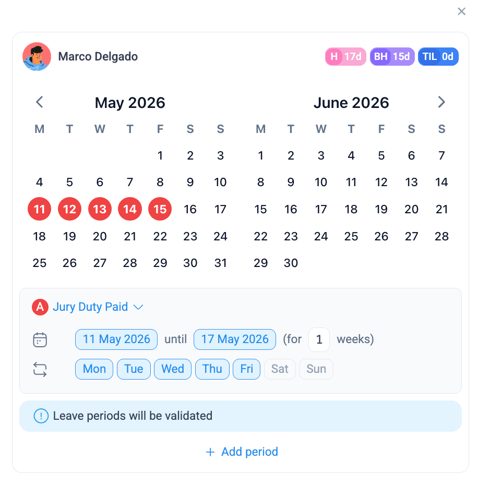
Step 5 — Add a second period if needed
If the leave is not one continuous block, click "+ Add period" below the calendar to add an additional date range. Complete the shift type and day selection for this new period in the same way.
You can add as many periods as needed. All periods will be validated together when you save.
💡 The blue banner "Leave periods will be validated" confirms the system will check all entries against the employee's existing roster before saving.
For more information on adding maternity/paternity
Step 6 — Add notes and attachments
- Use the Add notes field to record any additional context or information. This is not visible to the employee.
- Use Attach files to upload supporting documentation such as a jury duty summons or correspondence. These are also not visible to the employee.
Editing a Roster Leave Entry
If you need to make changes, click the eye icon under the Actions column to open the entry.
⚠️ Important: You can only edit a leave entry before the start date. Once the leave has begun, changes cannot be made.
Make your adjustments, add further notes or upload additional documents, then click "Save" to apply the updates.
Viewing Roster Leave in the Approvals Screen
On desktop: Roster Leave entries will appear in the Leave Request Approvals screen if you have permission to view Staff Profile details. As this leave type is auto-approved when created, the status will display as Approved. Use the status filter to locate these entries quickly.
On mobile: Roster Leave entries are also visible in the Leave Request Approvals screen on mobile. Tap the eye icon to see the full breakdown of the leave entry.
🇮🇪 Republic of Ireland — Bank Holiday Accrual
If the employee's shift type is configured to accrue bank holidays, they will continue to accrue bank holidays during their long-term leave period unless this is manually paused.
To pause accrual, navigate to the employee's Holiday Balances section in their Staff Profile and enter an Accrual Pause Date under Custom bank holiday rules. You can also set an Accrual Resume Date for when the employee is due to return.
If you are unsure how your site is configured, please contact our Customer Success team at hello@alkimii.com.
Deleting a Roster Leave Entry
⚠️ Important: If you need to remove or cancel a Roster Leave entry, please contact our Customer Success team at hello@alkimii.com and they will complete this on your behalf.