
- Teams

- Alkimii defaults to the "Todays Roster" screen.
- This can also be found under Roster → Todays Roster
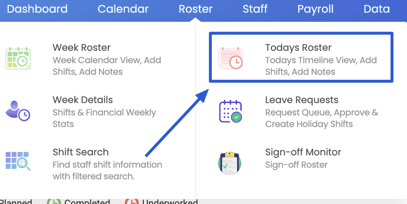
- This can also be found under Roster → Todays Roster
- Filter the Today's Roster by "Late"
-
- This will show all shifts where an employee's Clock In was later than their start time

- This will show all shifts where an employee's Clock In was later than their start time
- If an Employee Clocked In Late
- No Action Required
/Team/Week%20Roster/Today%20Roster%20Colour%20Red.png?width=344&name=Today%20Roster%20Colour%20Red.png)
- No Action Required
- Employee's shift was changed
- Slide the shift to amend the start and finish times
/Team/Week%20Roster/Slide%20Shift.gif?width=344&name=Slide%20Shift.gif)
- Save Changes
- Slide the shift to amend the start and finish times